

Tune the Keychron K10 HE on Linux without vendor software

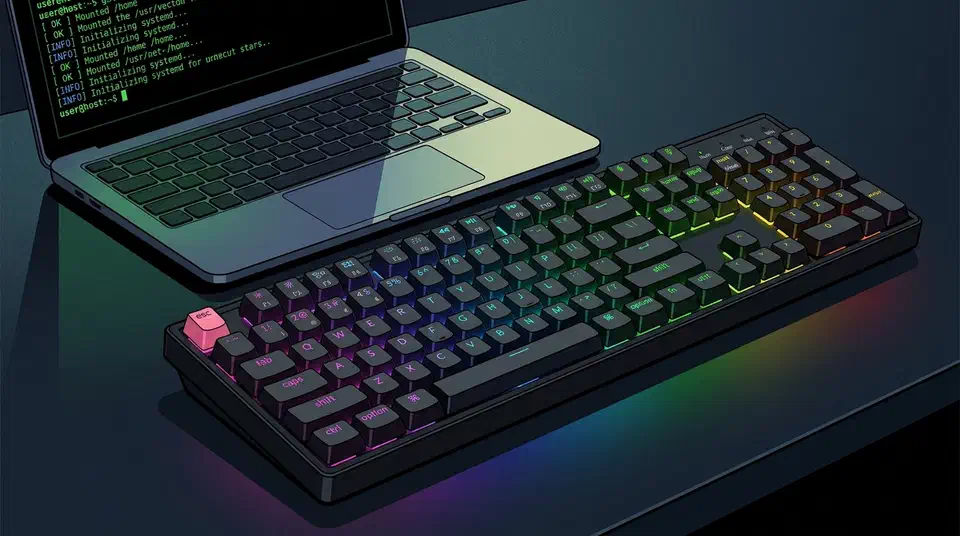
You can configure the Keychron K10 HE on Linux with QMK and VIA, no vendor launcher needed. The board runs open-source QMK firmware, so remapping, macros and actuation settings all live on the keyboard itself. The real blocker turns out to be a missing udev permission, which leaves a perfectly working keyboard undetectable to every configurator.
Key Takeaways
- The K10 HE runs open QMK firmware, so no vendor app is required to remap it.
- On Linux, a missing udev rule is what usually hides the board from configurators.
- Actuation adjusts from 0.2mm to 3.8mm on the Gateron double-rail magnetic switches.
- Wired and 2.4GHz modes both poll at 1000Hz.
- Bluetooth drops to 125Hz and hides some settings.
- Deep actuation tuning may only show up in Keychron’s own launcher, not in generic VIA.
What the K10 HE actually is
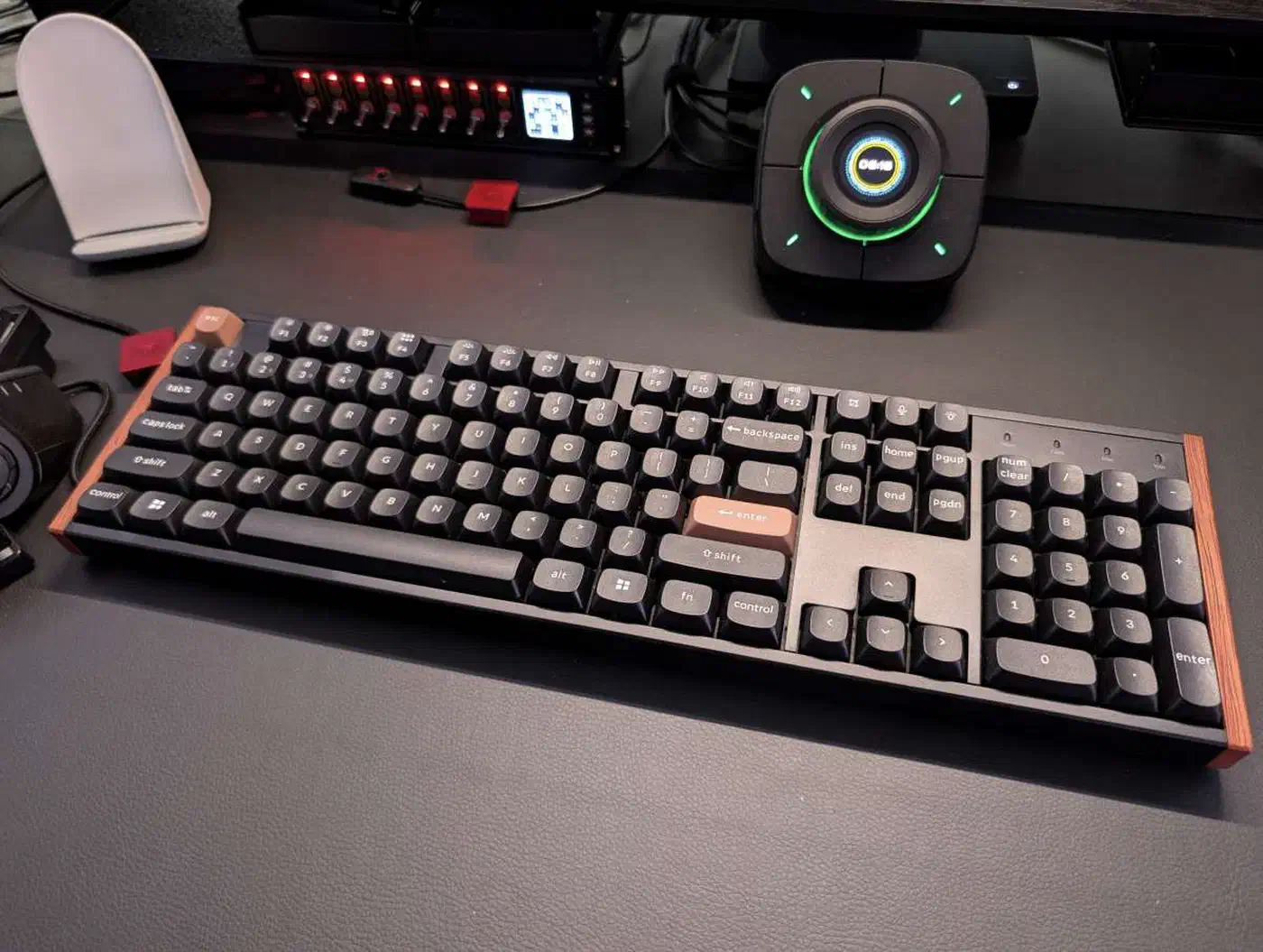
The Keychron K10 HE is a full-size board built around Gateron double-rail Hall Effect switches. These switches read key travel with a magnet instead of a physical contact. That lets actuation move anywhere from 0.2mm to 3.8mm, in 0.1mm steps. Reading travel from a magnet has a price, and magnetic sensing’s speed cost shows up against optical boards . Mice have started borrowing the trick, and Logitech now ships ten actuation levels on a flagship gaming mouse. The sockets are also hot-swappable, so you can try other double-rail magnetic switches later, per Keychron’s product page . This is a full-height board, so if you want a slimmer deck, Cherry’s low-profile switches cut about a third of the height. If you would rather have metal, the aluminium Corsair Makr Pro 75 is another hot-swap Hall Effect board, though its packed case trades typing bounce for heft.
Connectivity covers USB-C, a 2.4GHz dongle and Bluetooth 5.2. Wired and 2.4GHz both run 1000Hz polling, while Bluetooth drops to 125Hz, the same split you see on the gasket-mounted Air75 V3 . The Gadgeteer’s review put the board through real use and confirmed the rapid trigger and per-key actuation work as described.
Most of this guide applies to any board running QMK, because the udev fix, the VIA workflow and the browser caveats are generic Linux knowledge. Only the actuation range, the switch type and the vendor ID are specific to this board.
Why udev is the part that stops people
Udev is the part of Linux that decides which devices your account is allowed to talk to. By default your user has no direct access to the keyboard’s raw HID interface, which is exactly what VIA and Keychron’s launcher need. The same keyboard still types your login password just fine, because ordinary typing goes through the kernel’s own keyboard driver and never touches that interface.
The keyboard works, every key sends a signal and the OS sees it, so nothing looks broken until you open VIA or Keychron’s Launcher and find the device list empty. The missing udev permission blocks the software’s view of the device; the board itself works fine.
On a fresh install, plugging in the K10 HE and opening the launcher at launcher.keychron.com showed no device at all. A Debian user hit the same wall and wrote up the fix (Blaise Alleyne’s write-up ). One udev rule, granting hidraw access to the keyboard’s vendor and product ID, solved it. That pair is reported as 3434:0ea0 for this board. Reload the udev rules, replug the board, and the launcher picks it up right away.
Some distros ship udev rules for popular keyboard vendors already. Plenty don’t, and Keychron rules are missing from most desktop distributions out of the box. Before blaming VIA, run lsusb and check the board shows up at the USB level. If it’s missing there too, look at the cable or the dongle instead of permissions.
Configure a Keychron K10 HE on Linux with QMK and VIA
Confirm the board is detected
Plug the keyboard in over USB-C and run the following command to confirm the OS sees it at the USB level, noting the vendor and product ID it reports:
lsusbKeychron’s registered USB vendor ID is 3434; the product ID differs by model and switch variant, so read it from your own output rather than copying one from elsewhere.
Add a udev rule for device access
Create a rules file that grants your user access to the keyboard’s HID interface, using the IDs from the previous step:
sudo tee /etc/udev/rules.d/99-keychron-k10he.rules << 'EOF'
KERNEL=="hidraw*", SUBSYSTEM=="hidraw", ATTRS{idVendor}=="3434", ATTRS{idProduct}=="0ea0", MODE="0660", TAG+="uaccess"
EOF
Swap in the product ID lsusb reported for your unit if it differs from 0ea0.
Reload udev and replug the board
Apply the new rule and force the kernel to re-evaluate the device:
sudo udevadm control --reload-rules && sudo udevadm triggerUnplug the keyboard and plug it back in. The rule only takes effect on a fresh connection, not on a device that was already attached when you reloaded.
Open VIA and load the keyboard definition
Launch either the VIA desktop app , which ships as an AppImage on Linux, or Keychron’s browser launcher in a Chromium-based browser. Firefox lacks the WebHID support both tools need, so it won’t detect the board no matter what your udev rules say. If the keyboard doesn’t show up on its own in VIA, load the board’s JSON definition by hand from Keychron’s GitHub or product page.
Remap the keys you care about
Click through the layout and reassign what you actually use. Start with anything system-level, since Linux shortcuts don’t always match the Windows and macOS defaults the stock keymap assumes.
Set the actuation and rapid trigger values
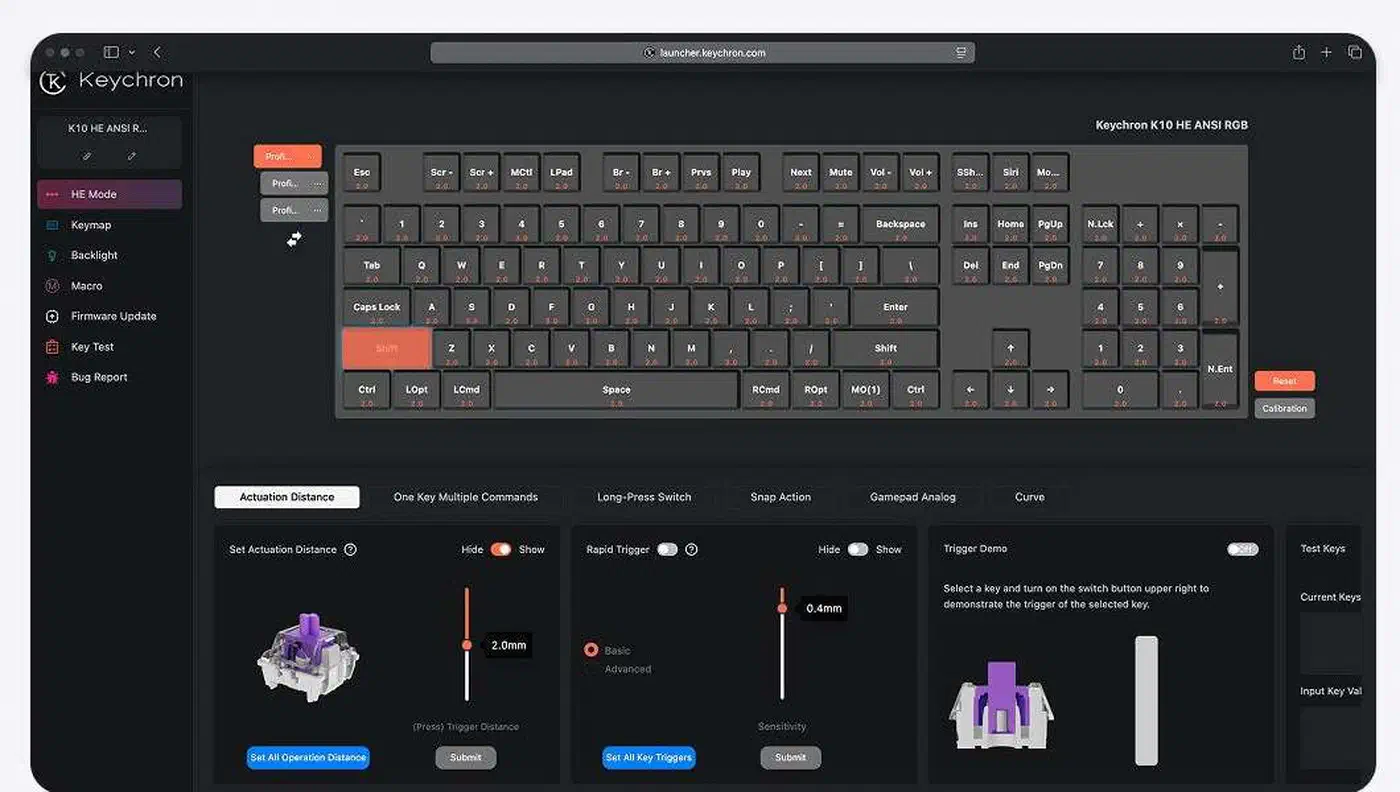
Open the actuation panel and set travel distance and rapid trigger sensitivity per key. Actuation is just one point of a switch’s push-back, which is why a force curve tells you far more about feel than a single number. Keymap edits and macros work through either VIA or Keychron’s Launcher, since both speak the same QMK protocol. Deep Hall Effect controls, like per-key actuation depth and dynamic keystrokes, often work only in Keychron’s own launcher. VIA’s open definition format wasn’t built around analog magnetic switches.
Back up the keymap
Use the export option in the VIA or Launcher settings menu to save the layout as a JSON file, then commit that file somewhere durable. A firmware update or a fresh machine shouldn’t cost you a keymap you spent an hour building. A plain JSON export drops into a git repository without any extra work.
Can you configure a gaming keyboard on Linux without vendor software?
It depends on whether the board speaks QMK or VIA. Those standards cover a small but growing slice of the market: Keychron’s Q, V and HE lines, most recent Corsair boards, and a long list of smaller custom-keyboard vendors. Most mainstream gaming brands still ship closed vendor firmware with a private protocol, and those boards need the vendor app.
Check for QMK or VIA support before you buy, using the manufacturer’s own spec sheet rather than a forum thread, since support can vary between switch versions of the same model. WebHID support also differs across browsers, so the AppImage build of VIA is the safer path if a Chromium-based browser isn’t an option for you.
The feature most likely to stay locked to a vendor launcher is per-key actuation on magnetic boards. Remapping and macros are part of the open QMK and VIA standard.
What to do when something does not work
No device shows up in VIA. Recheck the udev rule for typos in the vendor or product ID. Then confirm the browser supports WebHID, if you’re using the web launcher instead of the AppImage.
The device is detected but the layout is wrong. Load the keyboard’s JSON definition by hand instead of relying on autodetection. This is the usual fix on a board that isn’t in VIA’s default keyboard list.
Changes don’t stick after a reboot. Confirm you saved to the keyboard’s onboard memory, not just the current session. Some configurators default to a live preview that reverts on disconnect.
Everything works wired but not over the dongle or Bluetooth. Some settings, actuation tuning especially, are only exposed over a wired connection. Reconnect by USB-C to make changes, then switch back to wireless once they’re saved.
Something breaks and you need to start over. Keep the exported layout file from your last backup. Check the manufacturer’s reset combo, too, for restoring factory defaults before you remap from scratch.