

OrcaSlicer still works on Bambu through the Connect plugin

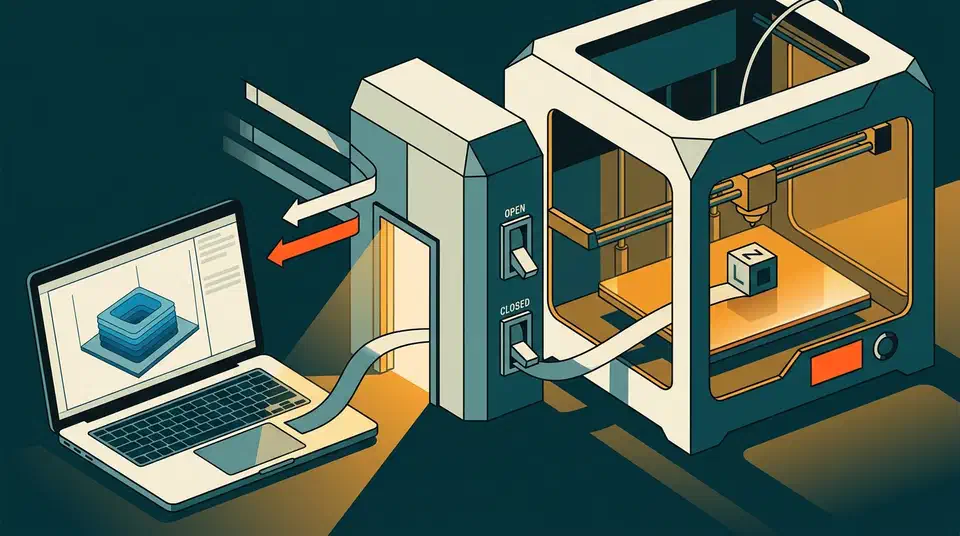
An OrcaSlicer Bambu Connect setup still works on Bambu’s authorization-control firmware, so the slicer is not dead. Firmware 01.08.02.00 on P-series machines and 01.05.00.00 on A-series ones block direct third-party control, and the Connect plugin brokers what is left. This post gives the steps plus a per-mode table of what each route allows.
Key Takeaways
- Bambu firmware blocks slicers from talking straight to the printer.
- The Bambu Connect plugin passes messages along, so OrcaSlicer keeps printing.
- LAN-only mode and developer mode are different switches with different limits.
- Bambu Connect ships for Windows and macOS, with no Linux build.
- Rolling firmware back breaks OrcaSlicer.
What the authorization control firmware blocked
Bambu Lab added an authorization control system to its printers, and the change rolled out per printer family. Tom’s Hardware reported that the update stops Bambu printers from talking to unofficial third-party software, OrcaSlicer and BigTreeTech’s Panda Touch screen included. X-series machines got it first, then the P-series at 01.08.02.00 and the A-series at 01.05.00.00.
Slicing itself was never blocked. Only the direct connection to the machine changed. You can still open a model, slice it, and export a 3MF file exactly as before.
Five operations now need authorized access, per the Bambu wiki on third-party integration :
- Binding or unbinding the printer to an account.
- Upgrading firmware from software.
- Pulling the camera feed.
- Starting a print job.
- Controlling motion, temperature, fans, AMS settings and calibration.
Some things escaped, though: MQTT status pushes still flow to tools like Home Assistant. SD-card prints still start from the screen, and MicroSD firmware updates work as they always did.
Bambu framed the whole thing as a safety measure.
3D printers have complex moving parts and heating elements that pose a high risk if unauthorized people with ill intentions gain access to them.
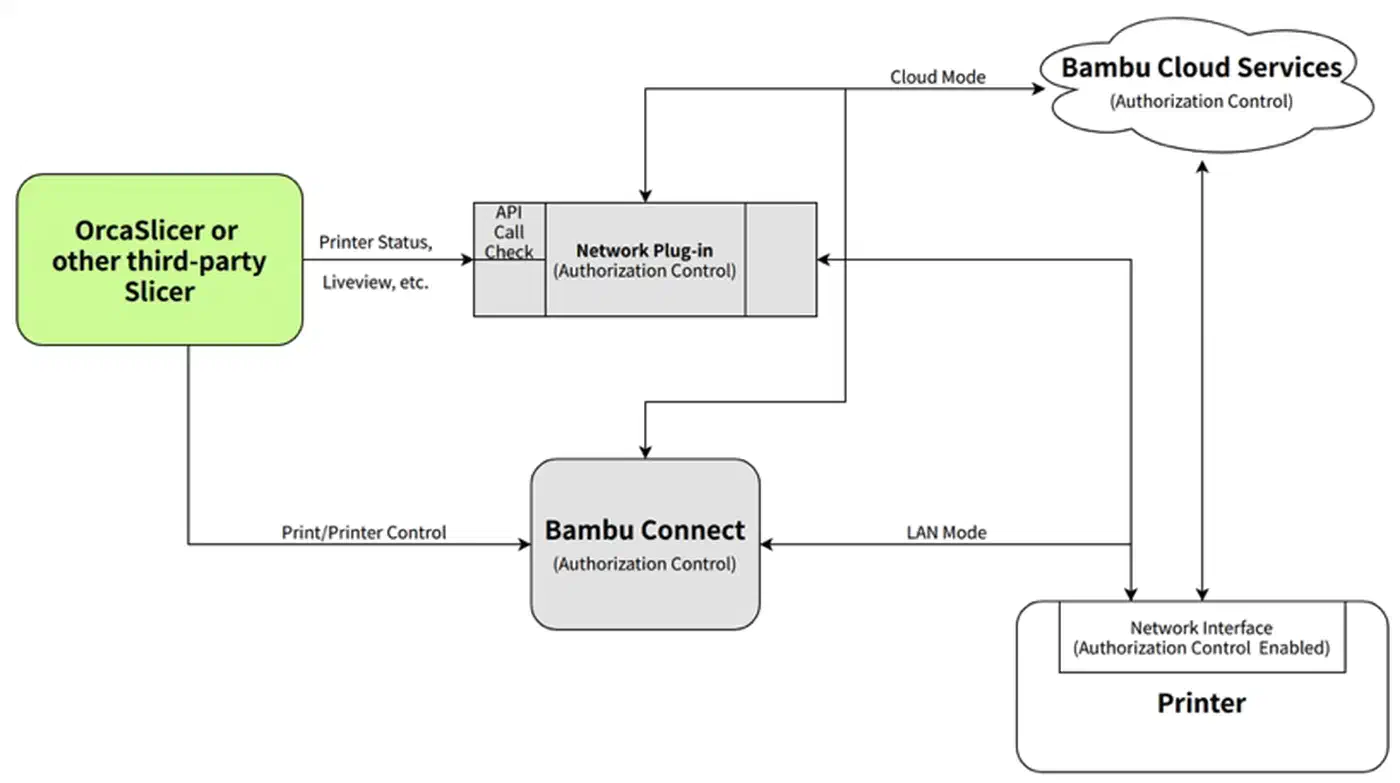
The supported route back is Bambu Connect, a small broker program. OrcaSlicer’s plugin hands the job to Connect, and Connect passes it to the printer.
How LAN-only mode differs from developer mode
The two settings sit near each other on the printer screen and do very different jobs, which is where most owners get stuck. LAN-only mode is a network setting. It keeps the printer off Bambu’s cloud and hands you a local access code instead. Authorization still applies. The restricted commands listed above stay restricted in normal LAN mode, exactly as they are in cloud mode.
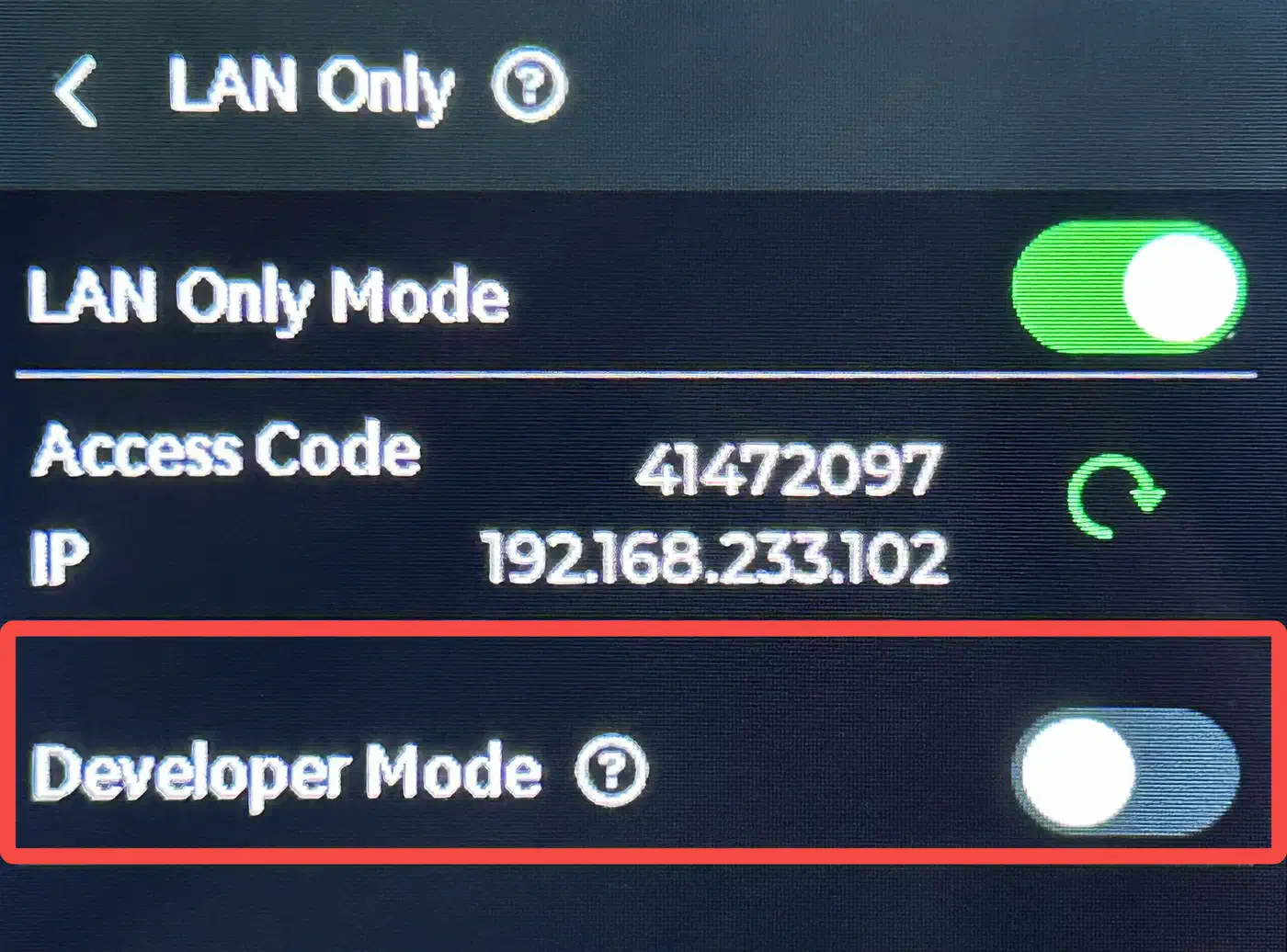
Developer mode is a permission setting. It runs only under LAN mode, and it drops the authorization check entirely. With it on, third-party software behaves the way it did before the update, with no modifications needed. The trade is that developer mode cannot reach Bambu Cloud at all, so the Handy app and remote access from outside your house both stop.
On the printer, open Settings, then WLAN, enable LAN Only mode, scroll down to Developer Mode, read the notice, and confirm.
No Bambu warranty text names developer mode as a voiding action, and the forum threads arguing about it are speculation. Developer mode is Bambu’s own feature, behind Bambu’s own menu. Installing X1Plus custom firmware is a different question and a much bigger one.
My recommendation: use LAN-only if you want privacy and a printer that keeps working when the internet does not. Reach for developer mode only when you have a named feature the broker will not give you.
OrcaSlicer Bambu Connect setup, step by step
Check your printer firmware version
On the printer screen, open Settings and read the firmware version. The third-party block applies from 01.08.02.00 on P-series and 01.05.00.00 on A-series machines. If you sit below those numbers, the rest of this section is optional for now.
Install Bambu Connect
Download the Bambu Connect installer for your operating system from Bambu’s software page and run it. Sign in with the account your printer is bound to. Connect ships for Windows 10 or later and macOS 13 or later. There is no Linux build, which is a hard stop for a lot of workshops.
Put the printer on the network you intend to use
Choose cloud or LAN-only mode on the printer and write down the access code it shows. LAN-only changes which features are reachable later, so decide before you start adding printers in the slicer.
Add the printer in OrcaSlicer
Open OrcaSlicer and add a new physical printer. Pick the matching Bambu machine profile, then let the slicer hand authentication off to Bambu Connect when it asks. Use a build from the 2.4 line. Release 2.4.2 fixed the repeated “reinstall Bambu network plugin” prompt and the plugin-in-use error that hit Windows users switching versions.
Send a test slice
Slice a small calibration cube and send it. A clean transfer proves the whole broker path works end to end, which saves you debugging a failed twelve-hour print later. A throwaway cube is also the right place to burn a cheap spool, so a batch of Prusa’s lower-carbon recycled filament with its random color does the job. Keep carbon-filled spools out of a throwaway test, because they grind the orifice wider, and only carbide-tipped hotends shrug that off. Check the actual hardness rating too, since Bondtech shipped semi-hard INDX nozzles under a hardened label. Set the filament’s volumetric flow limit before you press send, so the test print never outruns the melt zone.
Verify the features you rely on
Check camera view, AMS mapping, remote start and file management one at a time. Write down which ones answer in your chosen mode. Test the mapping with an awkward spool too, such as the hard flexible built for the AMS , so you learn early whether the profile arrives intact. A fan-off, 350°C profile such as the one Fiberon PPS-GF20 needs is another good stress test, since a mangled profile there ruins the print.
Decide on developer mode
If the broker will not give you something you genuinely need, read the developer mode notice on the printer before enabling it.
What works in each mode, feature by feature
The table covers the authorization-control firmware generation with OrcaSlicer on the newer Bambu network plugin. Anything I could not confirm is marked untested.
| Feature | Cloud mode | LAN-only mode | Developer mode |
|---|---|---|---|
| Send a sliced file | Works via Connect | Works via Connect | Works |
| Start a print remotely | Works via Connect | Works on your LAN | Works |
| Live camera view | Works via plugin | Works via plugin | Works |
| AMS filament mapping | Works | Works | Works |
| Browse and download printer files | Works via plugin | Works via plugin | Works |
| Firmware update from the slicer | Works via plugin | Works via plugin | Works |
| Change speed or temperature mid-print | Blocked | Blocked | Works |
| Timelapse download | Untested | Untested | Untested |
| Bambu Handy app | Works | Blocked | Blocked |
| MQTT status to Home Assistant | Works | Works | Works |
Adjustment commands are the ones you lose. You can watch a temperature climb from OrcaSlicer, then walk to the printer to change it.
Print farms feel this hardest. Automation that used to drive a rack of printers over plain LAN now routes every job through a broker with a desktop window. A local fleet dashboard such as Print Farm Manager still reaches Prusa and Klipper machines directly, so only the Bambu ones sit behind the broker. That broker only runs on Windows and macOS. Bambu’s answer at that scale is the Bambu Local Server SDK, an HTTP server you run on site. Getting it means filling in an application form. Third-party apps can also hand a file to Connect through a URL scheme:
bambu-connect://import-file?path=%2Ftmp%2Fcube.gcode.3mf&name=Cube&version=1.0.0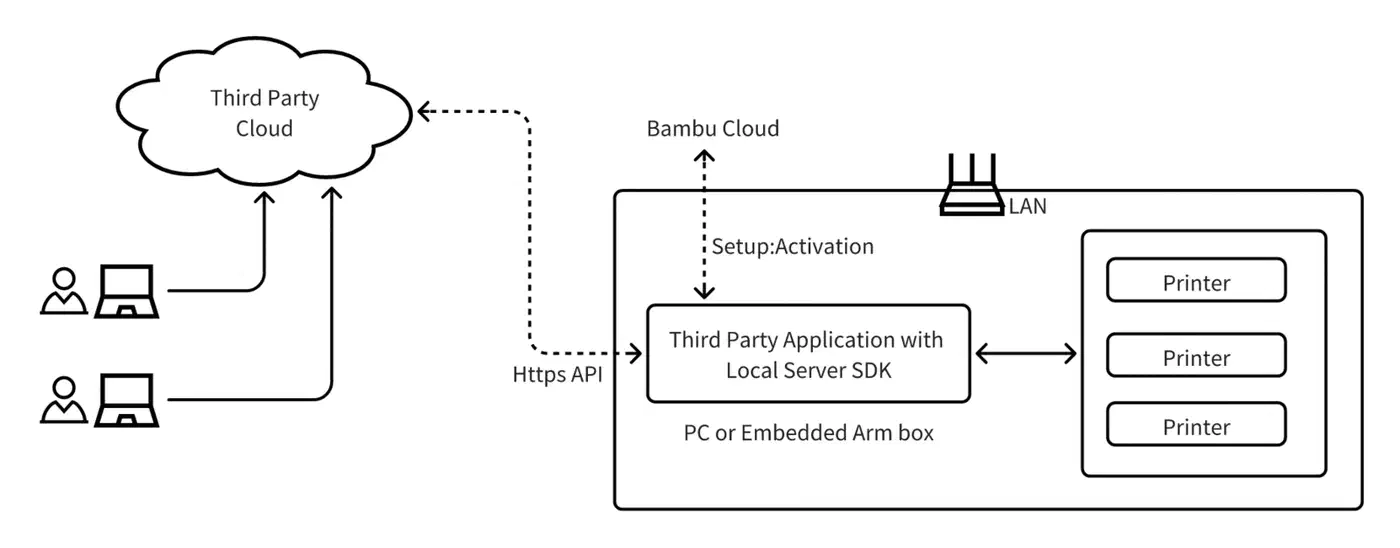
What to do when the connection stops working
Work by symptom, because the same error message comes from several different causes.
When the printer does not show up, check the network mode on the printer screen, then the access code you typed, then whether Bambu Connect is running at all. Connect only activates on demand. A machine that never launched it looks identical to a network fault.
Authentication failures usually come down to the wrong account. Confirm the printer is bound to the same Bambu account you signed into. A printer bound to a partner’s account authenticates against their credentials.
A transfer that starts and then stops points at a mismatch between your firmware version and your plugin version. Compare the two, and update the slicer rather than touching the printer.
If it worked until a firmware update broke it, read the release notes before you reach for a rollback. An OrcaSlicer bug report documents it: the newer network plugin needs the newer LAN protocol and refuses to talk to printers on pre-authorization firmware, X1Plus machines included. The X1Plus developer confirmed it cannot be fixed from the printer side.
Staying on old firmware no longer preserves the old freedom, because the plugin moved on along with the slicer. Going backwards costs you OrcaSlicer entirely.