

Print Farm Manager runs Prusa, Bambu and Klipper as one

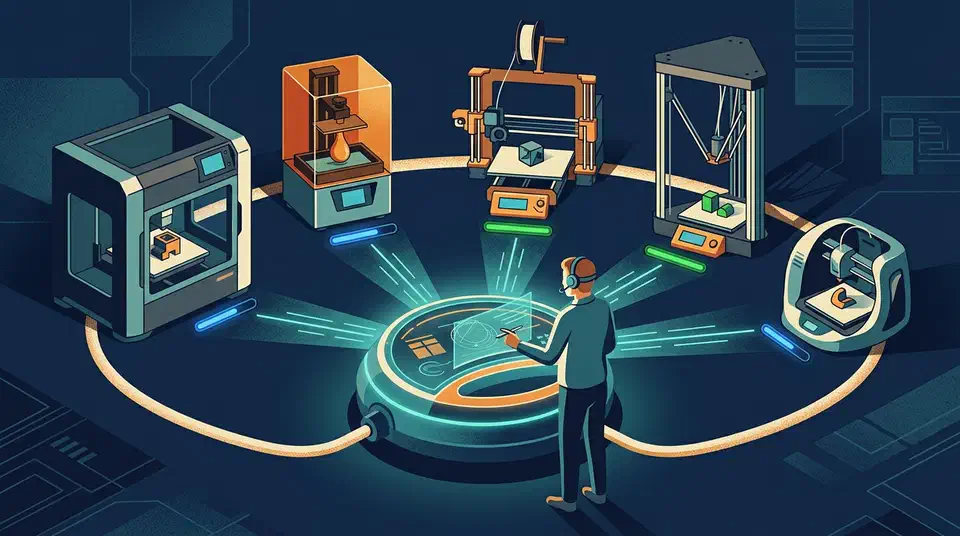
Print Farm Manager runs a mixed fleet of Prusa, Bambu, Klipper, Elegoo and OctoPrint printers from one local dashboard, with no cloud and no login. It is free and open source, built by Joel Telling of 3D Printing Nerd, who has pushed more than 3,700 real jobs through it since April.
Key Takeaways
- It is free, open source, and runs on your own network with no cloud or login.
- One dashboard drives Prusa, Bambu, Klipper, Elegoo and OctoPrint printers together.
- Jobs go out by part count, material and color, spread across whatever printers are free.
- The app assumes a print worked, but waits for a person to confirm it.
- It ships with no password, so keep it off the internet and on a trusted network.
What is Print Farm Manager?
Print Farm Manager is a self-hosted web app for running a whole fleet of 3D printers from a single screen. The project lives on GitHub and carries 177 stars and 63 forks, released free under the MIT license.
It was built by Joel Telling , who runs the 3D Printing Nerd YouTube channel. He wrote it to run his own farm, which prints XRP robotics kits for SparkFun. So it is production software he runs every day.
He built it because the vendor tools did not fit a mixed shop. His goal was a printer-agnostic tool that pushes as many parts out the door as possible.
My goal of writing this was because nothing else worked for what I wanted. I have Prusa printers, but Prusa Connect does not work well for what I need.
The whole thing is local by design. There is no cloud piece and no login screen, and it runs entirely inside a private network.
Which 3D printers does Print Farm Manager support?
Five printer families work today, and each one is reached through its own connector. That way the core app never has to learn brand-specific quirks. The README supported-printers list is the source of truth.
| Brand | Protocol | Example models |
|---|---|---|
| Prusa | PrusaLink REST API | MK4S, XL |
| Bambu Lab | MQTT plus FTPS | X1C, P1S |
| Klipper | Moonraker REST API | Voron and any Klipper build |
| Elegoo | SDCP over WebSocket, or MQTT | Centauri Carbon, Carbon 2 |
| OctoPrint | OctoPrint REST API | Any older printer on OctoPi |
The OctoPrint connector is the useful escape hatch here. Any older machine already running OctoPi joins the fleet through it, so the tool reaches printers that have no modern API of their own. The Klipper connector talks to Moonraker , which means Voron and other custom builds fit in the same way.
The connector pattern is why the list can keep growing. As Telling puts it, the core knows how to run a farm, and the connector knows how to talk to a specific printer. Adding a brand means writing one connector, not rewriting the app.
Registering machines one by one gets old fast, so there is a CSV import. Each row needs a name, ip and type, plus optional api_key, serial_number, group and model fields. One file loads a whole shelf of printers at once.
How Print Farm Manager dispatches jobs across a mixed fleet
The real idea sits in the data model, and it reads from the top down. A project holds parts, a part holds a target quantity, and a quantity is filled by one or more G-code files. Say a chassis part needs 50 copies. You attach an MK4S G-code and a Core One G-code, and both machine types now print toward that same 50.
Each G-code file also names a material and a color, or marks the color as “any”. So an order for a thousand parts in PLA farms out to every PLA-loaded machine until the count is met.
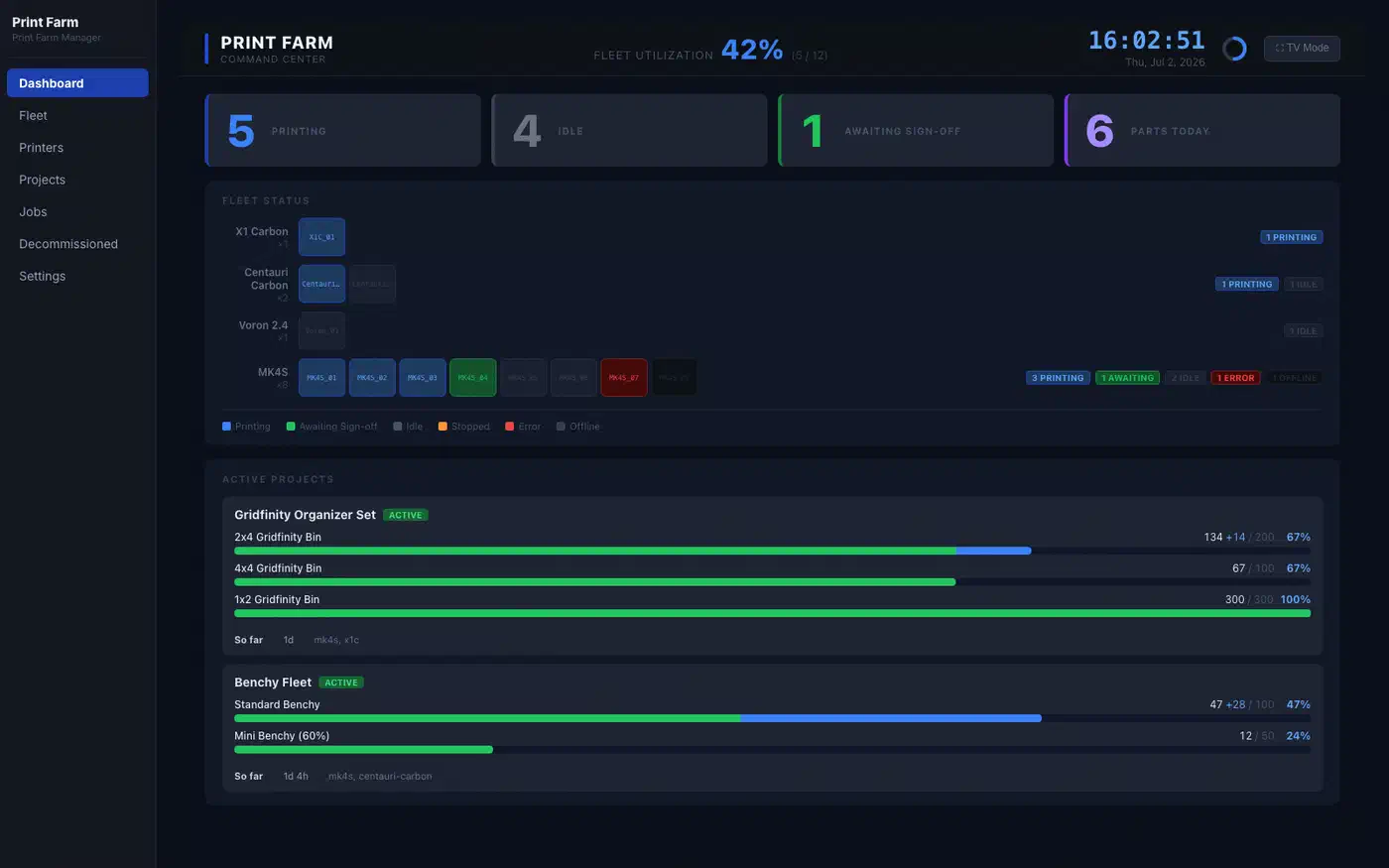
Groups add a second steering axis. Every printer can belong to a group, such as one shelf or one row, so you can point a job at a slice of the fleet instead of all of it.
Plate accounting keeps the counts accurate when parts fail. A plate might hold 25 copies, and if a few fail the operator logs “24 of 25”. The running count then reflects real output instead of assuming every plate came off clean.
Dispatch happens in batches. A configurable setting, which Telling runs at 5, sends jobs to the first few free printers, then the next few. That keeps a flaky printer network and the host machine from getting slammed all at once.
Scaling up is cheap. Adding a new printer model to an existing order is just attaching its G-code to the part. Activating a draft project hands every idle printer something to print right away.
The assume success, confirm by hand workflow
The tool’s most opinionated design choice is optimism. The software assumes a print worked so it can keep dispatching jobs. Still, it never books that part into the count until a human confirms it.
The farm software is going to assume success, but it never confirms it. A human operator has to confirm success.
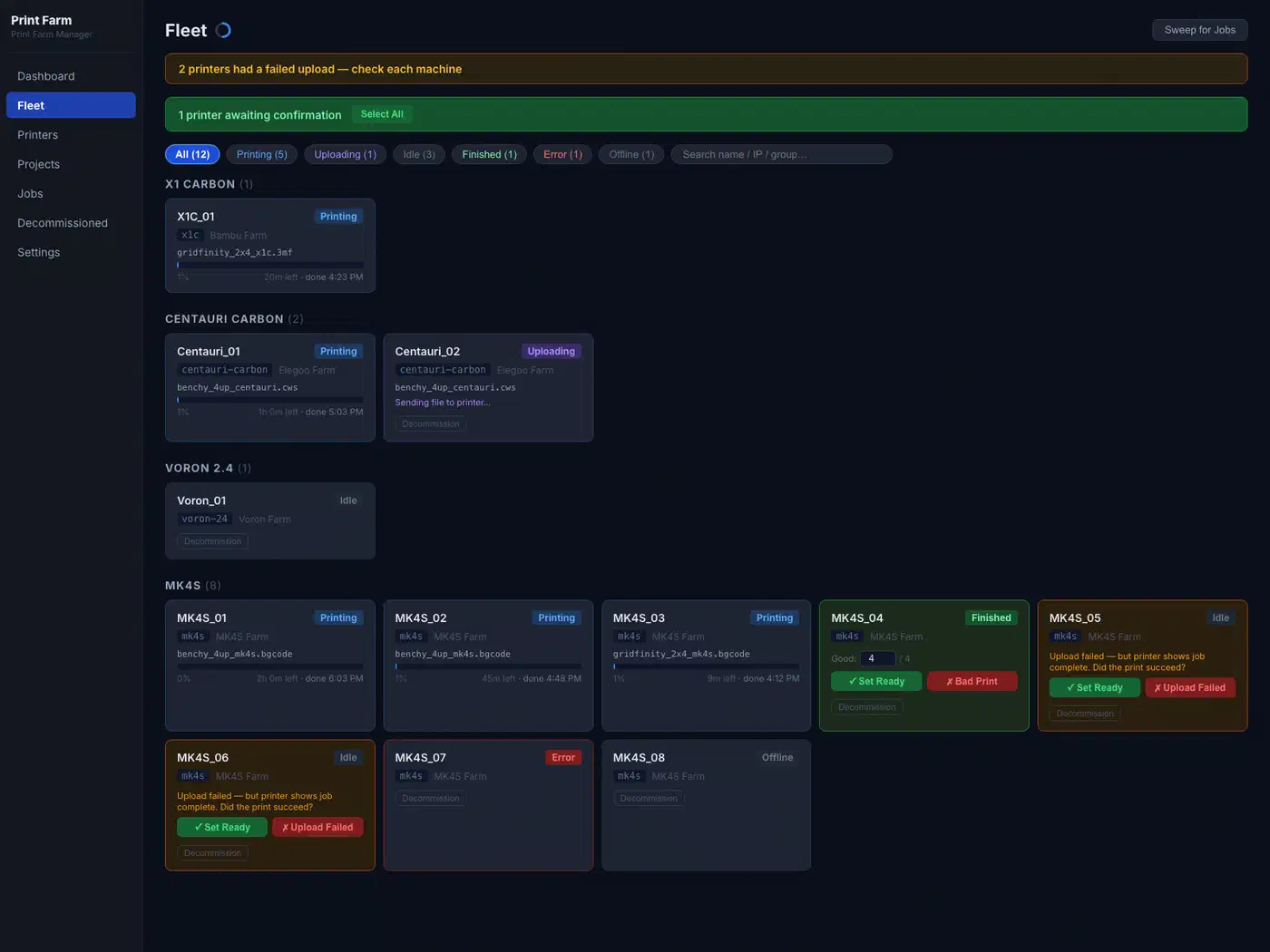
The fleet view surfaces every finished printer waiting on a person. Each one gets a green “set ready” button that logs the part and updates the count, and a red “bad print” button that starts a decommission flow. Color carries the whole shop at a glance: green needs harvesting, blue is printing, and orange needs attention, usually a spool that ran out.
Every machine keeps its own record too. One printer in the walkthrough showed 71 jobs, 257 parts and a 96% success rate over 311 print hours since early April. Per-printer history like that is how you spot the machine that drags down the fleet.
A printer can also be parked. If one throws a networking fault or a bad bed cable starts firing mintemp errors, the operator decommissions it with a note. It leaves the dispatch pool but stays in the records, so its history is not lost.
Self-hosting Print Farm Manager safely
The recommended path is the published Docker image, ghcr.io/joeltelling/print-farm-manager, with a compose file that mounts two volumes for data and G-code. Bare metal works too, and needs Node.js 22 LTS plus a build step. Both routes are in the installation guide
.
Under the hood the stack stays light. It runs on Node with Express, a React front end, and an embedded SQLite database, which is a single file with no separate database server to babysit. PM2 keeps the process alive across crashes and reboots. Backups are a single JSON export that captures both the farm config and the full job history, so a scheduled copy protects your records.
The app has no built-in authentication, and it hands your printer API keys to any client that can reach it. The README says so in bold and warns against exposing port 3000 to the internet.
This is a trusted-network tool, so treat it like one. Having self-hosted plenty of Docker apps like this, here is what I would do on a home network.
Bind the container to the LAN and leave port 3000 unforwarded on the router. Never add a port-forward rule to reach it from outside, because that exposes the printer keys to the open internet. If you need remote access, put it behind a VPN or an authenticating reverse proxy, so the login lives in that layer instead of the app. Do that, and the missing password stops being a risk.
A TV dashboard mode drives a wall-mounted, auto-refreshing display of the whole fleet, which earns its keep in a workshop. Since everything is already local, that screen costs nothing extra to run.
How to self-host Print Farm Manager with Docker
Install Docker and create a compose file
On the host machine, install Docker. Then save the project’s docker-compose.yml, which pulls ghcr.io/joeltelling/print-farm-manager:latest, maps port 3000, and defines two named volumes for data and G-code.
Start the container
In the folder holding the compose file, bring the service up:
docker compose up -dDocker pulls the image and starts the service with restart: unless-stopped, so it comes back on its own after a reboot.
Open the dashboard
From another machine on the same network, browse to http://<host-ip>:3000. Confirm the empty fleet dashboard loads before you add anything.
Register your printers
Add each printer under settings by picking its connector, then bulk-import a CSV of name, IP, type and API key to load a full shelf at once.
Lock it to your network
Check that port 3000 is not forwarded on the router. Because the app has no login and serves printer keys, it has to stay reachable only from inside your trusted LAN.
What Print Farm Manager does and does not do yet
Plenty already works, and it is proven on a real farm rather than a test bench. Multi-brand dispatch, per-part and per-printer data, operator confirmation, CSV import, JSON backup and restore, groups, and the TV dashboard all run today, across 3,735 logged jobs since April.
Telling lists the rough edges himself. Polling is fixed at 15 seconds and cannot be changed. The jobs list needs cleaner presentation. The CSV import has no downloadable template yet, and redundancy for the local backup is still on the roadmap.
The security gap is the real limit. No authentication means this stays a trusted-network tool, with no exception.
Against the vendor tools, the difference is concrete: Prusa Connect and Bambu’s farm software each lock you to one brand and lean on the cloud. An independent write-up from 3D Printing Journal reached the same conclusion.
Print Farm Manager is a solid, thoughtfully designed tool. Its real value becomes obvious when looking at how small mixed-brand print farms actually operate.
A free, local, brand-agnostic tool that already runs a working farm is a real option for a small shop, even this early. Telling built it for the smallest operators.
I’m thinking of like the kid with two or three machines in the garage. Maybe they’ve got a Prusa Mark 4 and a P1S and maybe an A1. With those 3D printers they could start a manufacturing business using free software that I provide.