

Certified DP80 cables carry the full 80Gbps over 1.2m

DP80 cable length is the overlooked limit on DisplayPort 2.1. A VESA-certified passive DP80 cable carries the full 80Gbps of UHBR20, but certification stops at 1.2 metres, and plenty of certified cables are only 1m or 0.8m. When a cable can’t hold that rate, the link drops a tier and the picture keeps working, so nothing tells you.
Key Takeaways
- Passive DP80 cables stop at 1.2m, and many are only 1m or 0.8m.
- Active DP80LL cables reach 3m and cost far more than passive copper.
- A cable that can’t keep up drops the link with no warning.
- 5K2K at 165Hz needs about 60Gbps, so DSC is mandatory below UHBR20.
- Linux can show your real link rate in one file. Windows can’t.
What DP80, UHBR20 and DisplayPort 2.1 mean
UHBR is the speed tier, and there are three of them. DisplayPort 2.1 defines UHBR10, UHBR13.5 and UHBR20, named for the gigabits per lane. A normal DisplayPort link uses four lanes, so the totals come out as shown in TFTCentral’s guide to DisplayPort 2.1 .
| Mode | Per lane | Total bandwidth | Usable data rate |
|---|---|---|---|
| HBR3 (DP 1.4) | 8.10Gbps | 32.40Gbps | 25.92Gbps |
| UHBR10 | 10Gbps | 40Gbps | 38.69Gbps |
| UHBR13.5 | 13.5Gbps | 54Gbps | 52.22Gbps |
| UHBR20 | 20Gbps | 80Gbps | 77.37Gbps |
The usable column is lower because the link spends some of itself on encoding. DisplayPort 2.1 uses 128b/132b encoding with forward error correction, which lands at about 96.7% efficiency. Older DP 1.4 used 8b/10b and only got 80% of its wire speed as data.
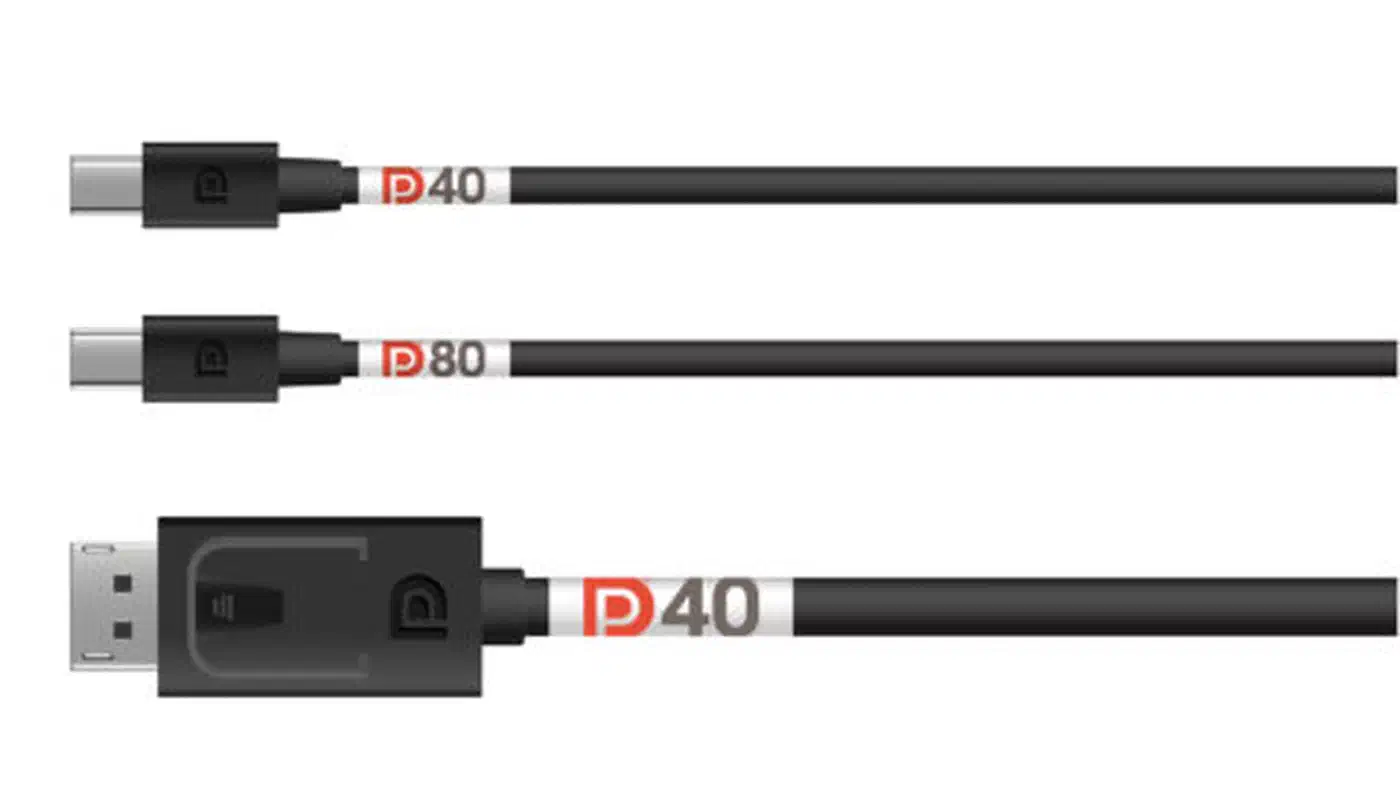
DP40 and DP80 are badges for cables, and they say nothing about what a port can do. A DP40 cable is rated for UHBR10 across four lanes. A DP80 cable is rated for UHBR20 and also carries UHBR13.5. No DP54 cable tier ever shipped, so a UHBR13.5 monitor needs a DP80 cable to run at its rated speed.
Therefore “DisplayPort 2.1” printed on a box tells you almost nothing. A port can wear that label while running UHBR10, or UHBR13.5, or in some cases no UHBR tier at all. The number you want on the spec sheet is the tier, and vendors often bury it or skip it.
Why DP80 cable length stops at 1.2m
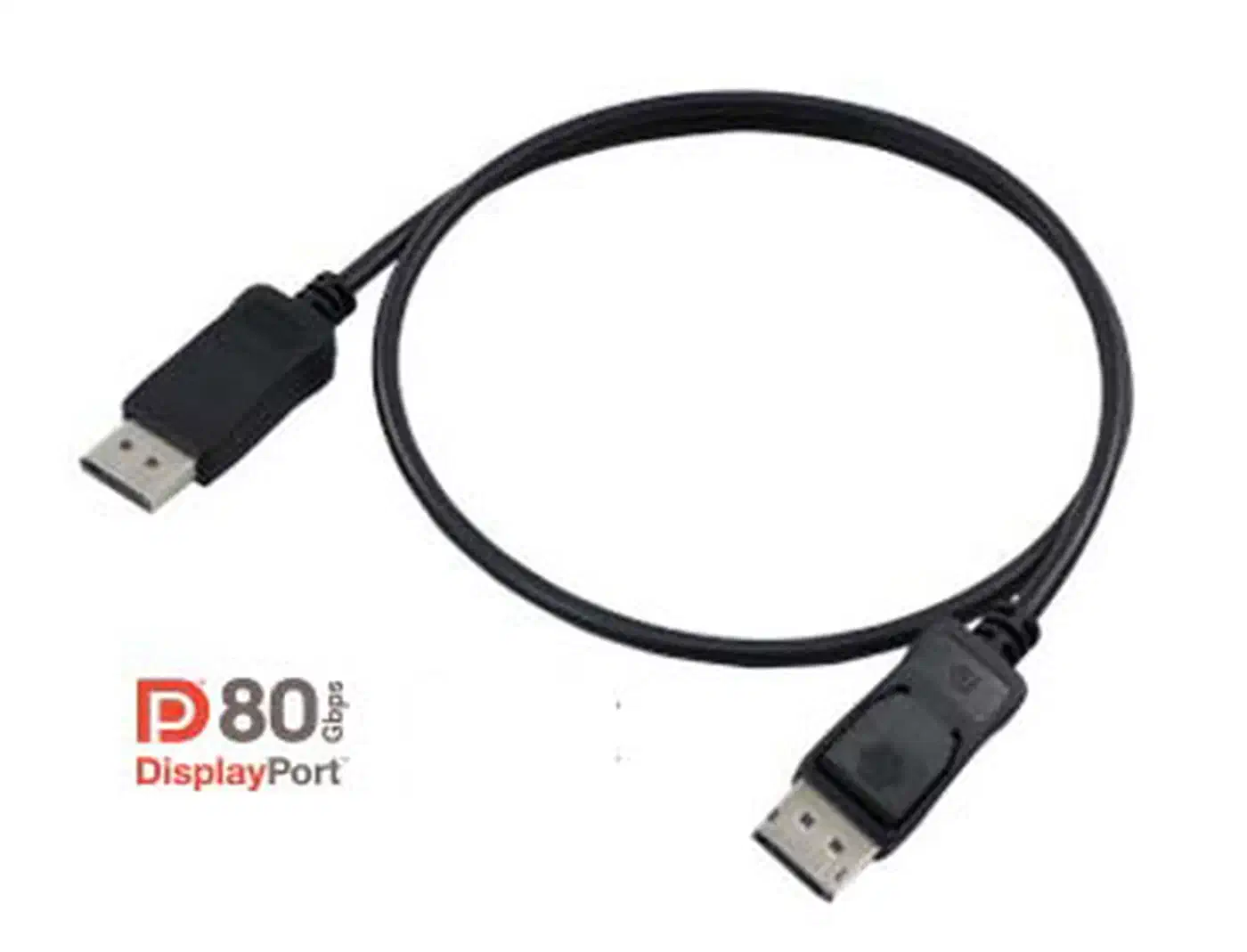
The longest passive DP80 cable in the VESA database reaches 1.2 metres, and many certified ones stop at 1m or 0.8m. Tom’s Hardware went through the certified list and found nothing longer. DP40 cables, by contrast, reach 3m without trouble.
A tower on the floor sits further than 1.2m from the screen on most desks. Most people own 2m DisplayPort cables because that is what a normal desk needs, and a 2m passive cable has no route to UHBR20.
Cable makers cannot build passive copper that holds 20Gbps per lane much beyond a metre, so nothing longer ever gets submitted for certification. VESA’s list follows what the copper can do. The rival standard hits the same wall: HDMI 2.2’s Ultra96 cables are certified per length too, and they now push the ceiling to 96Gbps.
It boggles my mind that shortening the max cable length to a forearm is an accepted solution instead of throwing an LC connector on the thing and just using multimode fiber.
Active DP80LL cables reach 3m
The fix arrived with DisplayPort 2.1b, which VESA wrote with help from Nvidia . It adds a DP80LL tier, short for low loss. These are active cables with signal-boosting circuitry inside the connector, and they hold four-lane UHBR20 out to three metres.
Three metres is enough to reach the floor, but active cables cost several times what passive copper does, and the electronics inside them are one more thing that can fail. Check that the exact model number appears in the VESA certified products database before you trust the badge on the box.
How much bandwidth does your resolution need?
Uncompressed video bandwidth is just pixels times refresh times bits per pixel, with a small allowance for blanking intervals. Using CVT-RB v2 timing and 10-bit 4:4:4 colour, the numbers land like this.
| Resolution | Refresh | Uncompressed | Minimum tier | DSC needed? |
|---|---|---|---|---|
| 3840x2160 | 144Hz | 39.2Gbps | UHBR13.5 | No |
| 3840x2160 | 240Hz | 68.6Gbps | UHBR20 | No |
| 5120x2160 | 165Hz | 60.2Gbps | UHBR20 | No |
| 5120x2880 | 120Hz | 57.1Gbps | UHBR20 | No |
| 6144x3456 | 60Hz | 39.8Gbps | UHBR13.5 | No |
| 7680x2160 | 240Hz | 135.7Gbps | above UHBR20 | Yes |
| 3840x2160 | 480Hz | 156.5Gbps | above UHBR20 | Yes |
5K2K at 165Hz and 10-bit sits well past the UHBR13.5 ceiling of 52.22Gbps, so such a monitor on a UHBR13.5 port always runs compressed, whatever the cable. The 4K 240Hz row is the one to watch, because that is the mode most of the 2026 OLED gaming screens are sold on. The 4K 480Hz row sits above UHBR20 entirely, which is why the 32GS95UE dual mode has to drop to 1080p to reach 480Hz.
Display Stream Compression squeezes the signal by roughly a third before it goes down the wire. VESA calls DSC visually lossless because it passed formal picture-quality studies, but the compression is still lossy and real bits get discarded.
Display Stream Compression also carries side effects that have nothing to do with picture quality. Turning it on disables DSR on Nvidia cards. Some monitors add a black-screen delay of a second or two whenever the mode changes, and a few disable picture-by-picture modes outright. That last one stings on a panel like Dell’s 52-inch 6K UltraSharp , where splitting the screen between machines is the whole point. Consequently a UHBR20 link that avoids DSC is worth having, even when the compressed version looks identical.
The silent downgrade
DisplayPort negotiates its speed at connection time through a process called link training. The source and the display try the highest rate both claim to support. If the signal isn’t clean enough, they step down and try again. That’s by design, and it’s why a bad cable rarely produces a black screen.
Neither Windows nor Linux announces the step down, and the monitor carries on showing a picture without any on-screen message.
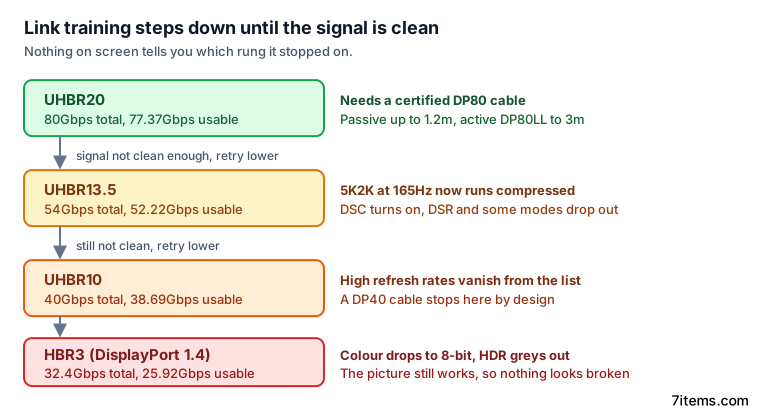
What you see instead are symptoms that look like other faults:
- A refresh rate that used to be in the list has vanished from display settings.
- Colour depth drops to 8-bit and won’t go back to 10-bit.
- HDR greys out in the settings panel or turns itself off.
- The picture flickers or shows brief sparkles under load.
A long or uncertified cable causes this more often than anything else. Cables sold as “DisplayPort 2.1 compatible” are especially suspect, because that phrase carries no certification behind it and any cable maker can print it.
If a display mode disappeared after you swapped a cable, moved the PC, or added an extension, suspect the link rate before you suspect the GPU. Very little else removes modes from the list without an error. A dock in the path is another suspect, because a Thunderbolt 5 dock only shifts spare bandwidth to video when it sees a display that asks for it. One cable can also carry power the other way: a portable screen with 65W pass-through sends video up to the laptop and charge back down.
How to read your real negotiated link rate
Linux exposes the negotiated rate directly. On AMD hardware, the amdgpu driver publishes a link_settings file per connector under the DRM debug interface.
sudo mount -t debugfs none /sys/kernel/debug
ls /sys/kernel/debug/dri/0/
sudo cat /sys/kernel/debug/dri/0/DP-1/link_settings
The first line of the output reads Current: followed by the lane count, the link rate as hex, and the spread-spectrum flag. Four lanes at 0x7d0 is UHBR20. 0x546 is UHBR13.5, 0x3e8 is UHBR10, and 0x1e means the link fell all the way back to HBR3 from DisplayPort 1.4.
Substitute your own connector name and card index, since DP-1 and dri/0 are only examples.
The proprietary Nvidia driver doesn’t publish these files, so this method covers AMD and Intel graphics. Wayland doesn’t change the readout, because the value comes from the kernel driver rather than the display server. Userspace tools that report modes are less consistent there than under X11, and the same split shows up in how Wayland handles fractional scaling on a high-density panel.
Windows has no first-party readout of the negotiated link rate. Your practical substitute is the mode list in display settings, cross-checked against the table above, plus your monitor’s own signal information page in the OSD. Several UHBR20 monitors print the active link rate there, which is as close as Windows gets to a direct answer.
Good looks like UHBR20 on four lanes with every advertised mode selectable. If the rate came back lower than the port and monitor both support, you have three moves: fit a shorter passive DP80 cable, buy a certified DP80LL active cable for a longer run, or accept DSC on the lower tier and lose the features that DSC disables.