

DSC squeezes 4K 240Hz through a DisplayPort 1.4 link

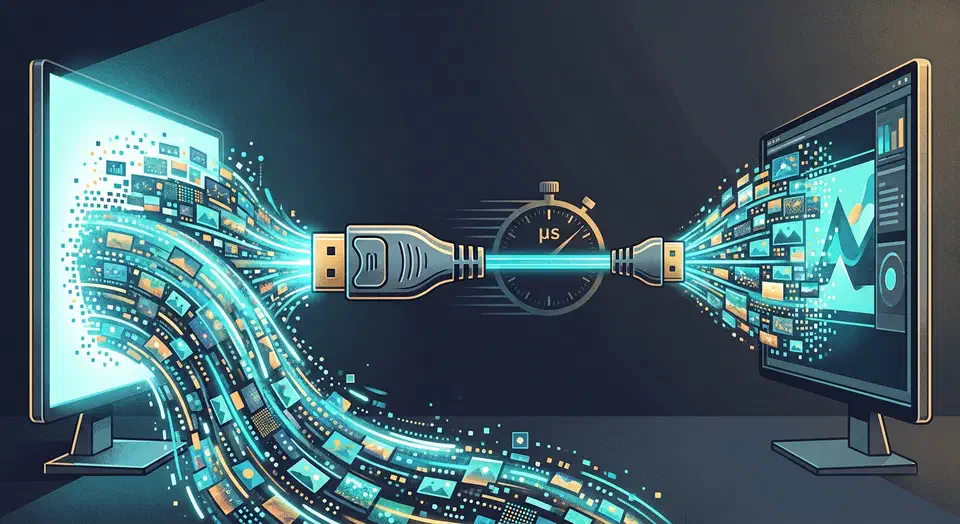
Display Stream Compression is what pushes 4K 240Hz through a DisplayPort 1.4 link that only carries about 25.92 Gbps, well short of the roughly 40 Gbps such high-refresh content needs uncompressed. VESA’s codec compresses up to 3x, stays visually lossless in blind testing, and adds under a microsecond of lag.
Key Takeaways
- DSC lets a DisplayPort 1.4 cable run 4K 240Hz that would need far more bandwidth.
- It shrinks the signal up to 3x and stays invisible to the eye in blind tests.
- It adds under a microsecond of lag, so gaming feels the same.
- The real headaches are dock dropouts and slow alt-tab. Image quality holds up fine.
- Leave DSC on unless you are chasing a specific bug.
What is Display Stream Compression?
Display Stream Compression, almost always shortened to DSC, is a video codec developed by VESA and built directly into modern GPUs and monitor scalers. Your graphics card compresses the signal, sends it down the cable, and the monitor decompresses it before the panel ever lights up.
What makes it fast enough for a live display is the way it works on the image. Unlike JPEG or H.264, which chew through whole blocks of a frame, DSC compresses line by line as the image is drawn. The RefreshRateTest team calls this a line-buffer compression method , and it is the reason the codec keeps up with a 240Hz refresh without stalling.
The important phrase is “visually lossless,” not “mathematically lossless.” DSC does transform the data. It is engineered, though, so the compressed image cannot be told apart from the original in normal viewing. That is different from ZIP-style compression, where the decoded output has to be bit-for-bit identical.
Availability is broad but uneven. DSC rides on DisplayPort 1.4, DisplayPort 2.1, and HDMI 2.1, and it works on NVIDIA GPUs from the RTX 20-series onward and AMD Radeon RX 5000 onward. The Display Ninja DSC guide notes that DSC is optional on DP 1.4 and HDMI 2.1 inputs, but mandatory on every DP 2.1 input.
Why 4K 240Hz needs DSC on a DisplayPort 1.4 link
The whole case for DSC sits in one bandwidth gap. A DisplayPort 1.4 link offers about 25.92 Gbps of usable bandwidth over HBR3. A 4K 144Hz signal at 10-bit color already needs roughly 40 Gbps uncompressed. The cable simply cannot carry that mode without compression, so DSC is the enabler that unlocks 4K at 144Hz and above.
RefreshRateTest pegs the same numbers from the other side, listing DisplayPort 1.4a at 32.4 Gbps against a 4K 144Hz 10-bit HDR signal near 40 Gbps.
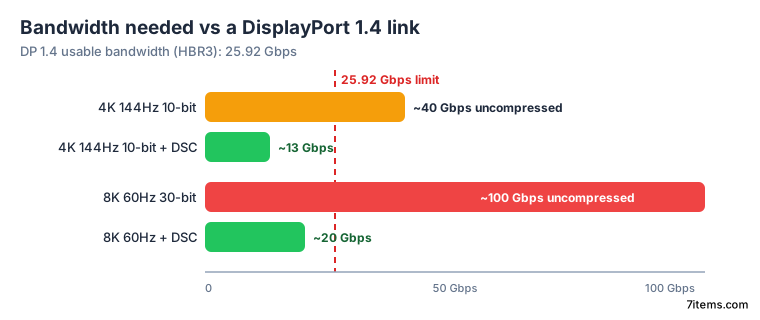
It scales up hard, too. An uncompressed 8K 60Hz signal at 30-bit color can approach 100 Gbps, while DSC can bring that requirement down near 20 Gbps. That is how 8K modes exist at all on current links.
Here is how the demanding modes stack up against a DisplayPort 1.4 link:
| Display mode | Uncompressed need | Fits DP 1.4 (25.92 Gbps)? | DSC required? |
|---|---|---|---|
| 4K 144Hz, 10-bit | ~40 Gbps | No | Yes |
| 4K 240Hz, 10-bit | higher still | No | Yes |
| 1440p 240Hz, 10-bit | above HBR3 | No | Yes |
| 8K 60Hz, 30-bit | ~100 Gbps | No | Yes (drops to ~20 Gbps) |
Newer links change the numbers, though the conclusion holds. DisplayPort 2.1 over UHBR20 carries up to 80 Gbps and needs DSC less often. The codec does not become obsolete, though. It turns into a headroom multiplier for higher refresh, multi-monitor rigs, and future modes.
Does DSC hurt image quality?
The short answer is no. VESA classifies DSC as visually lossless, which means trained expert viewers under double-blind testing could not tell a compressed image from an uncompressed one. Testing has found it visually lossless down to 8 bits per pixel across natural images, text, and graphics.
The limit is that “visually lossless” is a testing standard, and results depend on the observer and the content. A chaotic noise pattern or a synthetic test image is harder to compress cleanly than a game scene, a spreadsheet, or a web page. For real content, the evidence points the other way.
People also forget that on a bandwidth-starved link, the real alternative to DSC is dropping to 4:2:2 chroma subsampling, which blurs text and causes color fringing. DSC keeps full 4:4:4 color, so it is the better-looking option.
Most “DSC artifacts” are not DSC at all. A marginal cable, an unstable driver path, a dock bandwidth limit, a firmware bug, a VRR interaction, or an HDR mode switch can all look like compression damage while the real fault sits somewhere else in the chain.
DisplayPort DSC is not a downgrade to fear; it is one of the reasons modern high-refresh, high-resolution displays are usable through real cables and real ports.
Does DSC add input lag?
Competitive players assume that compressing and decompressing every frame must cost latency. The mechanism says otherwise. Because DSC is a hardware line-buffer process, it does not wait for a whole frame before it starts. Total encode-plus-decode latency sits under 1 microsecond, which is 0.001 ms, far below the 6.9 ms frame time of a 144Hz display.
Display Ninja tested display latency on the MSI MPG 341CQPX at 165Hz and recorded 4.714 ms with DSC on versus 4.718 ms with DSC off, a gap that lives inside the margin of error. For competitive play, DSC is not the limiting factor. Panel response, processing modes, VRR behavior, and game render latency all weigh more.
The real DSC annoyances buyers hit
The genuine downsides of DSC are link-negotiation quirks and device compatibility. Image loss is not among them.
Slow alt-tab is the common one. Because DSC has to renegotiate the link state, tabbing out of an exclusive-fullscreen game can take 2 to 3 seconds longer than an uncompressed signal. RTX 30-series GPUs had a known longer-than-normal black-screen delay on that switch.
There is also a feature clash. On many NVIDIA setups, turning DSC on disables Dynamic Super Resolution and DLDSR, though not DLSS. Display Ninja reports this resolved on the RTX 50-series.
The rest of the trouble tends to sit in accessories and consoles:
- Docks and KVMs are the usual suspects, since shared bandwidth and intermediary firmware fail more often than DSC itself.
- The PS5 does not support DSC. Its HDMI 2.1 port caps at 4K 120Hz with 4:2:2 chroma, and can fall to 4:2:0 on displays that lean on DSC for 4K 144Hz.
- Troubleshooting is murky because many systems enable DSC automatically with no clean on/off switch, so problems get pinned on it by default.
Should you enable or disable DSC?
Leave DSC enabled. If it delivers the monitor’s advertised resolution, refresh, HDR, and color depth, that is the intended setup. Turning it off forces visible compromises, like dropping from 240Hz to 120Hz or losing 10-bit color.
Disable it only for a specific reason: a known driver bug, a professional validation workflow that needs an uncompressed link, a dock or KVM misbehaving, or a session where you are isolating flicker. If artifacts vanish only when you lower the refresh rate, change the cable, or bypass a dock, the link path is the culprit and DSC is in the clear.
For a self-test, compare the highest DSC mode against a lower uncompressed mode using content you care about: dark gradients, fast pans, and HUD text for gaming; small text and wake-from-sleep for office work. If you cannot see a difference but DSC buys you higher refresh or better color, the win is real.
One buying note: do not treat “DisplayPort” as a full spec. Check the DP version, the supported maximum mode, and whether that mode depends on DSC, a specific port, firmware, or a certified cable. A monitor may advertise 4K 240Hz while the path to it runs entirely through the codec. If you would rather skip compression at 4K 240Hz, that is where a fatter pipe like HDMI 2.2 and its 96 Gbps comes in, trading a newer cable and port for raw uncompressed headroom.