

Fractional scaling gets sharp in Plasma 6.7 on Wayland


Wayland fractional scaling looks blurry because the compositor resamples the image, whatever scale number you picked. Every window on your desktop sits on one of two paths. Native apps render at the fractional scale and stay sharp. X11 apps render at the next whole number, then the compositor shrinks them back down.
Key Takeaways
- Blur comes from resampling, and the scale number you chose has little to do with it.
- Native Wayland apps stay sharp at any scale.
- X11 apps get drawn big, then squashed, which softens every edge.
- Plasma 6.7 adds a protocol that passes real pixel coordinates.
- Toolkit variables only patch the X11 path; they cannot move an app off it.
Why do apps look blurry with fractional scaling on Wayland?
Set a display to 125 percent and the compositor has to decide what to hand each app. A client that cannot draw itself at 1.25x gets told to draw at 2x instead. The compositor then shrinks that oversized buffer back down to fit. That shrink is the blur, and no amount of font tweaking removes it.
Native Wayland clients skip the whole detour. They are handed the fractional scale, they render at it, and the compositor composites the result untouched. Text edges stay hard because nothing resampled them.
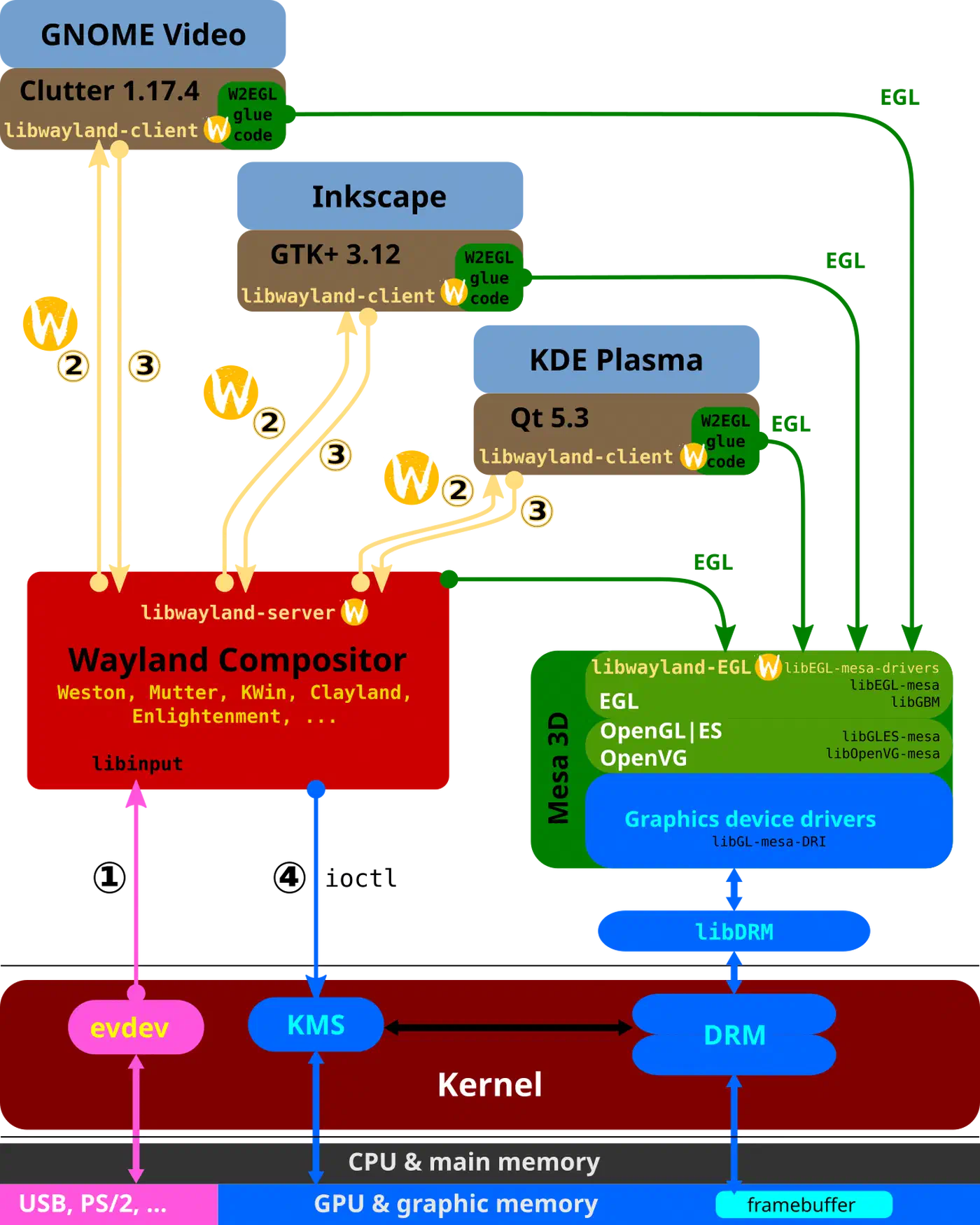
The GNOME Discourse thread on HiDPI scaling in Wayland explains the trade in the compositor’s own terms. Once the experimental fractional-scaling switch is on, the coordinate space for each monitor is scaled by that monitor’s own factor. X11 clients are then told they sit on a low-DPI screen, whatever the panel really is. The compositor has to scale them up afterwards to keep them usable.
Turning the switch on changes behaviour at whole-number scales too. That’s why some desks go soft at 100 and 200 percent.
With the old (default) way, legacy X11 applications will forever be unusable due to being too tiny to use, and the new way solves this at the cost of HiDPI capable X11 applications.
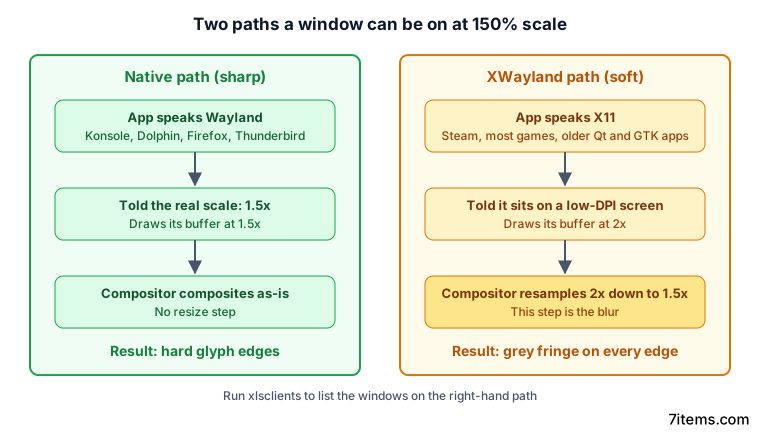
The two paths a window can be on
On the native path, the app speaks Wayland. It receives the fractional scale and draws at it. The compositor puts that buffer on screen with no resize step, so edges come out sharp.
On the XWayland path, the app speaks X11 and reaches the screen through XWayland . It’s told it sits on a low-DPI monitor, so it draws at the next whole scale. The compositor then resamples that buffer down, softening every edge.
The Arch Wiki Wayland page
points at xlsclients. The tool only ever sees X11 clients, so anything it lists is on the resampled path. Native Wayland apps never show up in it at all.
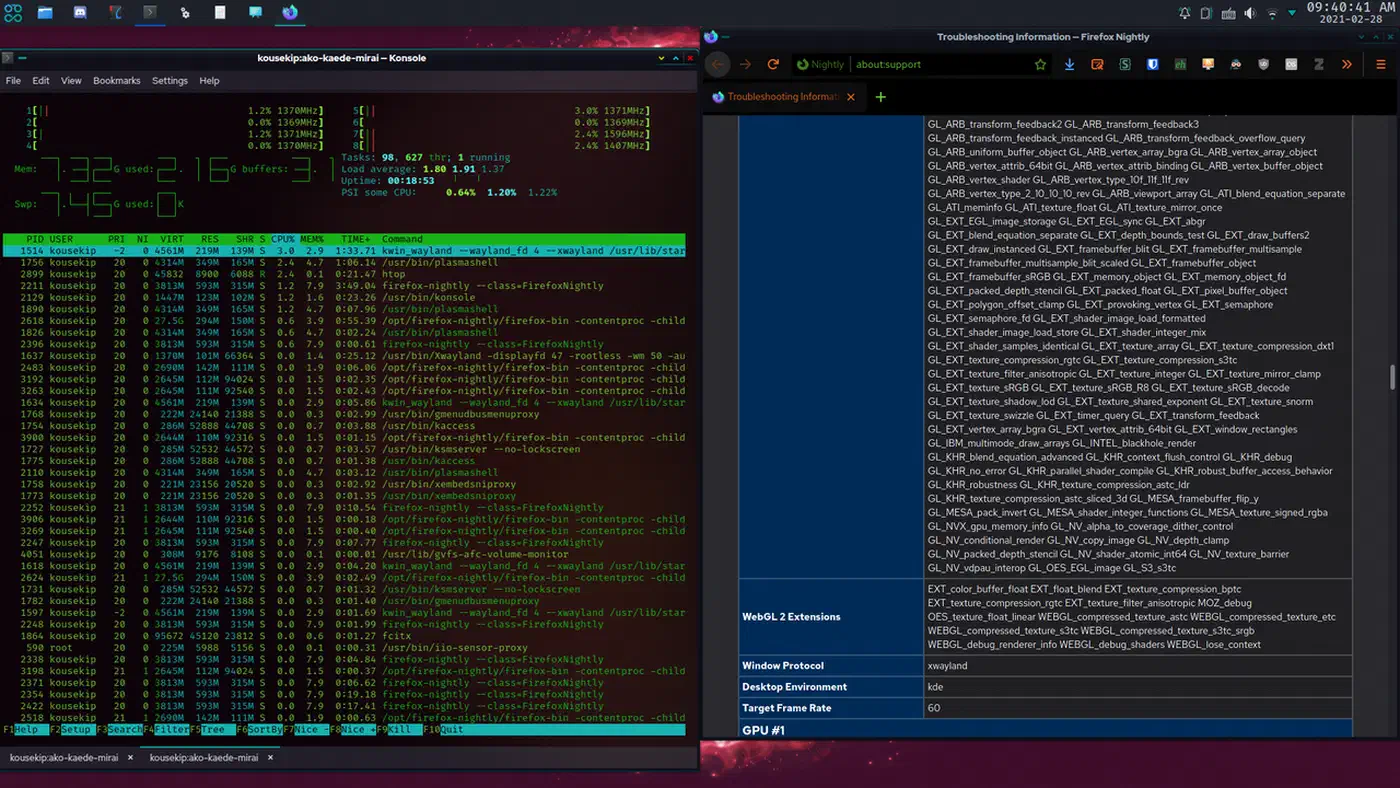
The membership of each group shifts from release to release. Steam and many games still run through XWayland. Electron was the classic offender. Wayland is the default from Electron 38.2 onward, though, and older builds move over when you set ELECTRON_OZONE_PLATFORM_HINT to auto or wayland. That variable is the one exception to the rule below, because it moves an app between paths instead of patching it in place.
Every other variable is only a patch. A toolkit variable can change how big an X11 app draws itself, so it stops looking tiny or comically huge, but it cannot make a resampled buffer sharp, because the resampling happens after the app has finished drawing.
What Plasma 6.7 changes
KDE Plasma
6.7 adds support for the experimental xx-fractional-scale-v2 Wayland protocol. Vlad Zahorodnii landed the work in KWin, and the This Week in Plasma issue announcing it
describes the win as reduced gaps between adjacent items.
As Neowin’s report on the KDE change puts it, the protocol communicates screen coordinates in unscaled physical pixels rather than the older integer-based logical space. Rounding errors in that older space leave hairline gaps between a window and a panel on a high-DPI monitor. They are also what makes edges jitter while you drag a window bigger.
Two nearby fixes shipped in Plasma 6.6.4 and are easy to confuse with the protocol. The KDED background service could die with a Wayland protocol error when the screen resolution changed. Separately, KWin now handles XWayland apps that a bad config file had sized wrongly. Both are scaling bugs, and neither one is the new protocol.
The protocol tightens the native path and does nothing for XWayland clients. An app being resampled before Plasma 6.7 is still being resampled after it. What changes is that sharp windows now line up against panels and against each other with no stray pixel of background showing through.
Setting Wayland fractional scaling on KDE and GNOME
Both desktops put the control in the display settings, and both apply it per screen. GNOME sets a scale factor per output. A two-monitor desk with different pixel densities therefore carries two independent numbers rather than one global one. KDE does the same through System Settings, under Display and Monitor.
A window dragged from a 4K panel at 150 percent to a 1080p panel at 100 percent has to be redrawn mid-move. An X11 client cannot do that cleanly. It picks one scale and lives with it, which is why the same app looks fine on one screen and wrong on the other.
What I saw on my own desk
My desk pairs a 27-inch 4K panel with an older 1440p one beside it. At 150 percent on the 4K screen and 100 percent on the other, roughly two thirds of my windows were fine on the first try. Konsole, Dolphin, Firefox and Thunderbird all render through Wayland and looked identical to the integer-scaled setup I came from.
Steam’s text carried a soft grey halo on the 4K screen that no font setting touched. Dragging it to the 1440p panel cleared that up instantly, which is the resample behaving exactly as documented. I left the display at 150 percent and stopped trying to fix Steam, since the only cure was dropping the whole desktop to 100 percent and squinting at everything else. If one stubborn app is your main app, the answer runs the other way: pick the whole-number scale and accept a smaller UI.
Toolkit escape hatches and what each one costs
Each variable has a scope and a side effect, and picking the wrong one gives you giant fonts in a normal-sized window. All of them are documented on the Arch Wiki HiDPI page .
| Variable | Scope | Cost |
|---|---|---|
GDK_SCALE | Whole-number scale for GTK apps | Scales the interface and the text together |
GDK_DPI_SCALE | Text only in GTK apps | Usually set to 0.5 to undo doubled fonts |
QT_SCALE_FACTOR | All Qt apps at once | Scales fonts as well, so it stacks badly |
QT_SCREEN_SCALE_FACTORS | Per screen, for Qt apps | Combined with toolkit scaling, gives huge fonts |
QT_ENABLE_HIGHDPI_SCALING | Automatic Qt behaviour | Fights any manual factor you also set |
Xft.dpi | DPI for X11 rendering | Double-scales if a toolkit variable is also set |
The pairing that works for a doubled GTK app is GDK_SCALE=2 with GDK_DPI_SCALE=0.5. The interface grows, then the text comes back down to a sane size. For Xft.dpi, whole multiples of 96 behave best, so Xft.dpi: 192 in your Xresources rather than an odd number from a DPI calculator.
Launch the app from the same shell you exported the variables in, or it will not inherit them. None of these variables moves an app to the native path. The resample step underneath carries on exactly as before.
How to find out whether an app is blurring on the XWayland path
This check takes about five minutes and tells you whether a config change can help a given window.
Confirm you are on a Wayland session
Check the session type:
echo $XDG_SESSION_TYPEThe output has to read wayland. If it reads x11, none of the behaviour in this post applies to your desk and your blur has another cause.
Set a fractional scale on one monitor
In KDE System Settings or GNOME Settings, set that display to 125 or 150 percent and apply it. On GNOME you may need to switch on the experimental fractional-scaling feature first.
List which windows run through XWayland
List the X11 clients, then cross-check in the KWin debug console, which labels each window by client type:
xlsclients -l
qdbus org.kde.KWin /KWin showDebugConsole
Every entry in the first list is an X11 client, so every entry is on the resampled path.
Compare glyph edges at 1:1
Take a screenshot with no scaling applied to the capture. Open it at 100 percent zoom and look at the vertical stem of a lowercase letter. Native rendering gives a hard edge, while a resampled buffer gives a grey fringe about a pixel wide.
Apply the matching variable
For a GTK app on the X11 path, export GDK_SCALE and GDK_DPI_SCALE. For a Qt app, export QT_SCALE_FACTOR or QT_SCREEN_SCALE_FACTORS. For an Electron app, set ELECTRON_OZONE_PLATFORM_HINT instead, since that one can move it to the native path outright. Start the app from that shell.
Re-run the glyph comparison
Take the same screenshot and check the same letter stem. If the fringe is gone, the app landed on a clean scale. If it looks the same, the app is still being resampled.
Decide between sharpness and size
If an app you depend on is stuck on the resampled path, you have two options. Drop the display to a whole-number scale and live with a smaller interface everywhere, or keep the fractional scale and live with one soft window.