

Set your mouse DPI on Linux with Piper, not vendor apps


Piper sets gaming mouse DPI, profiles, button maps and lighting on Linux with no vendor software at all. The real limit is coverage. Of the 120 device files libratbag ships, 76 are Logitech and none are Razer. Check that list before you buy, because an unlisted mouse stays a plain mouse.
Key Takeaways
- Piper is the window you click; libratbag does the talking to the mouse.
- Your mouse is configurable only if libratbag ships a file for it.
- None of libratbag’s 120 device files cover a Razer mouse.
- Check the supported list before you hand over any money.
- ratbagctl does the same job from a script, with no window.
What Piper and libratbag actually do
Piper is a GTK app, and that is all it is. It draws the sliders, the button map and the LED picker, then hands your choices to libratbag , which owns every hard part of the job.
libratbag exists because every mouse vendor speaks its own private USB dialect. Logitech uses HID++, ASUS uses its own protocol, and cheaper mice often use a shared Sinowealth chip. libratbag wraps all of that behind one interface. An app can say “set resolution 1 to 1600 DPI” without knowing which brand it is talking to.
Between the two sits a daemon called ratbagd. It runs as root over DBus and is the only piece that touches the hardware, so every change you make in Piper reaches the mouse through it.
If Piper opens but your mouse never appears, the fault sits a layer down, in libratbag. File bug reports about unsupported hardware on the libratbag tracker.
Will my gaming mouse work with Piper?
The answer comes from the libratbag device files . Every supported mouse has a small text file there naming its USB IDs and its driver. Without a file there is no support, whatever else you install.
There are 120 of those files, and the spread is lopsided:
| Vendor | Device files | What you get |
|---|---|---|
| Logitech | 76 | Deepest coverage by far, including keyboards and headsets |
| ASUS ROG and TUF | 19 | Good modern coverage, including recent wireless models |
| SteelSeries | 10 | Older Rival, Sensei and Kinzu models |
| Roccat | 3 | Three Kone variants only |
| Glorious | 3 | Model O and Model D |
| Razer | 0 | Nothing at all |
The libratbag project names Logitech, Etekcity, GSkill, Roccat and SteelSeries as its supported vendors, and Razer is absent from that list on purpose. Razer owners get a different stack instead: OpenRazer is the driver, and Polychromatic is the GUI on top.
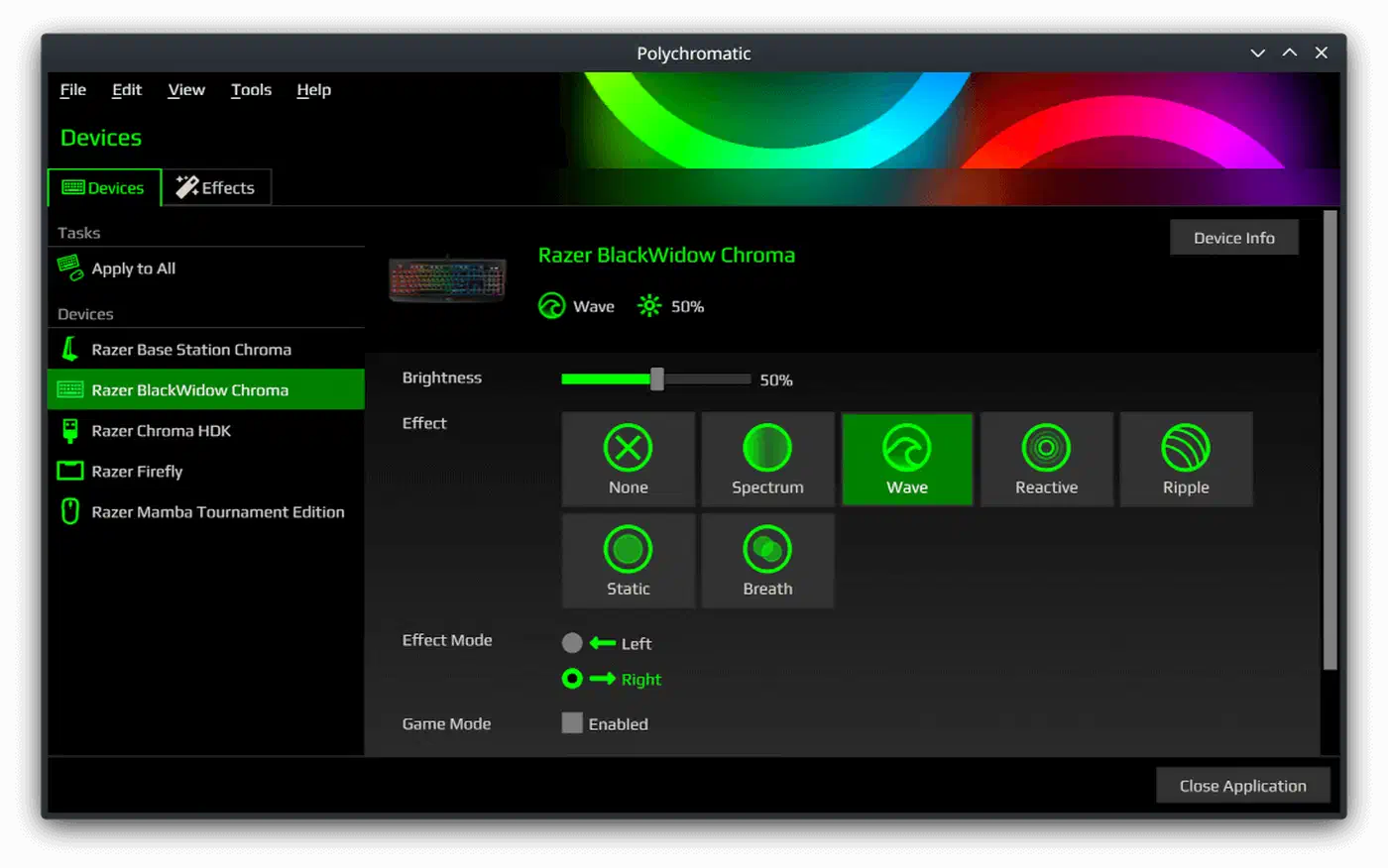
Coverage looks like this because device files are written by people who own the hardware and reverse-engineer the protocol. Popular mice get contributors, and obscure ones do not. That also explains why some files are three lines long while others spell out button counts and DPI ranges by hand.
Match your exact model, revision included. A Logitech G502 X, a G502 X Plus and a G502 X Wireless are three separate files. Picking the wrong one tells you nothing. Partial support is also common, with DPI working while the lighting does not, or a profile refusing to stick after a reboot.
How to set gaming mouse DPI and buttons with Piper
Check your mouse is supported first
Open the device file directory and search for your exact model name. If nothing comes back, stop here.
Install libratbag and Piper
Install both from your package manager. Some distributions ship libratbag already, in which case only the front end is missing.
sudo apt install ratbagd piperA Flatpak build of Piper is available too, though the daemon still has to come from your distribution.
Start the ratbag daemon
Packaged installs usually enable DBus activation, which means the daemon starts on demand. Check the state, and only enable it yourself if the check comes back inactive.
systemctl status ratbagd
sudo systemctl enable --now ratbagd.service
Open Piper and confirm detection
Plug the mouse in and launch Piper. Your device should show up by name within a second or two. If the window says no device was found, the problem is the daemon or a missing device file.
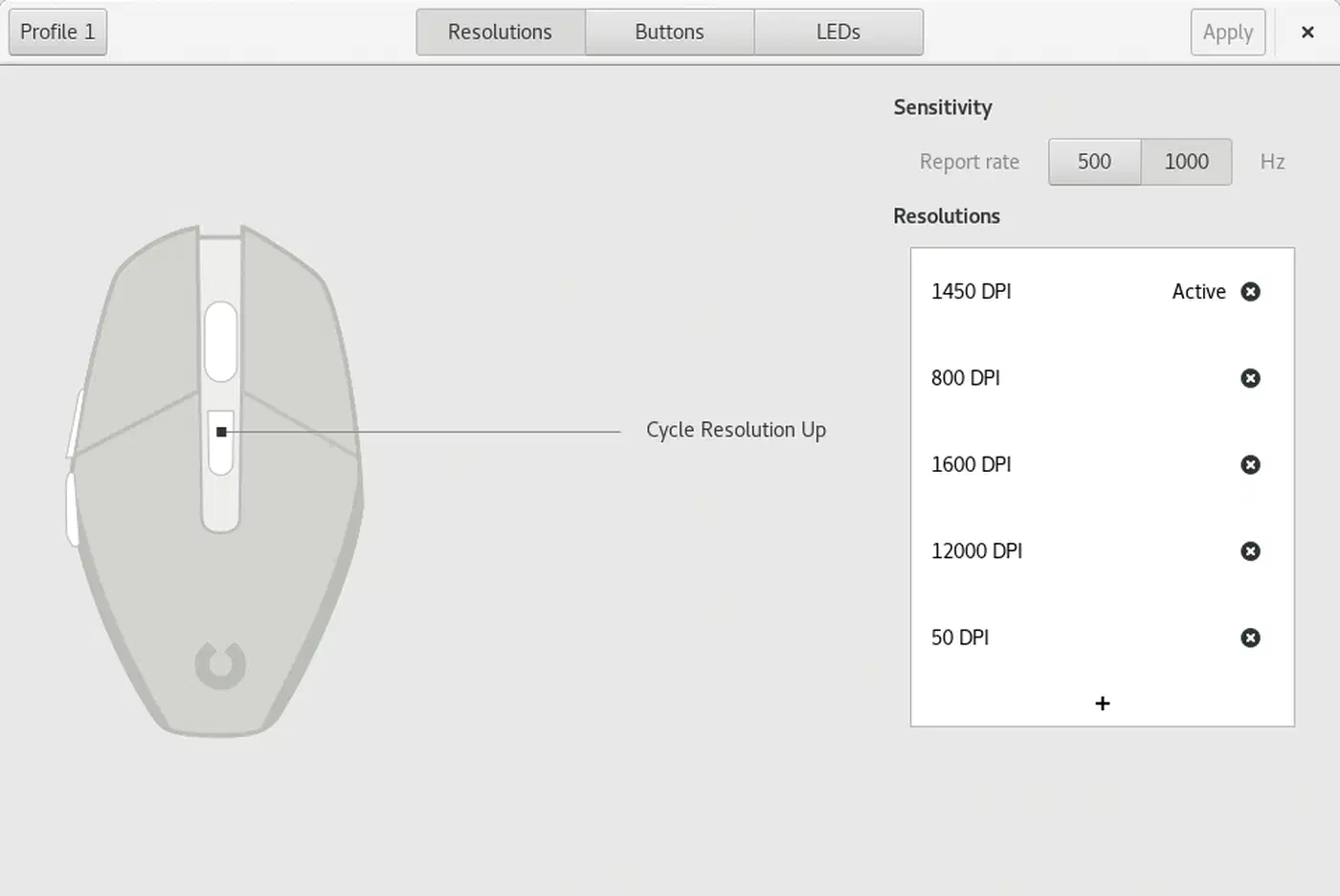
Set your DPI stages
Piper gives you a slider per DPI stage, plus a polling rate control when the hardware exposes one. Leave that control alone unless you know your chip can absorb it, because the top tier costs real CPU time on older processors . Delete the stages you never use. A mouse with five stages makes the DPI button a lottery, whereas two or three stages make it something you can hit blind mid-game.
Map the buttons and save to the device
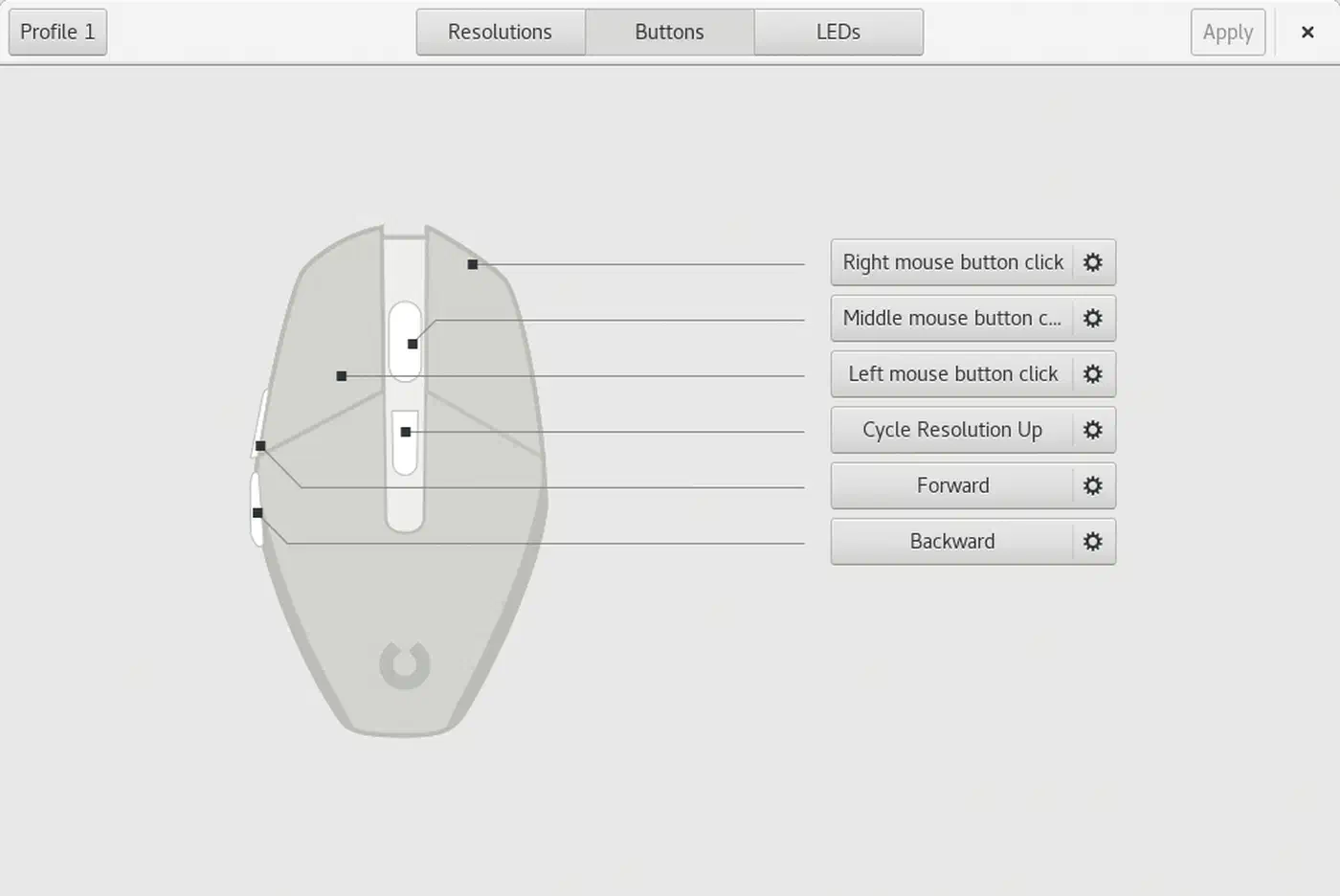
Assign each button an action, then write the profile to the mouse’s onboard memory. Because that storage sits on the mouse itself, the settings survive a reboot and a distro reinstall, and they follow the mouse to any other machine, Windows included.
Script it with ratbagctl if you want
Everything above has a command-line twin. ratbagctl drives the same daemon from a shell. Bind a DPI change to a hotkey, or flip profiles from a script.
ratbagctl list
ratbagctl "Logitech G502 Hero" dpi get
ratbagctl "Logitech G502 Hero" dpi set 1600
ratbagctl "Logitech G502 Hero" profile active set 1
What I hit setting this up
The install itself took under a minute on a Debian-based desktop with a G502 Hero plugged in. Piper opened, found the mouse by name, and the DPI sliders responded immediately.
The part that wasted my evening was a profile that seemed not to save. I changed a DPI stage, closed the window, and the old value came back. The cause was the profile selector. I had edited profile 2 while the mouse still ran profile 1, so my change was written correctly and then ignored. Switching the active profile fixed it in seconds.
After that, the settings held through a reboot and through moving the mouse to a second machine, exactly as onboard storage promises. Next time I will check which profile is active before I touch a single slider.
When Piper is not the right tool
An unsupported mouse is a dead end. Nothing in Piper reaches a device libratbag cannot identify, so fall back to your desktop’s own pointer speed settings.
Polling rate is the weakest area. Support depends on what each driver exposes. One libratbag issue tracks missing low rates like 125Hz , along with rates that read back correctly while the hardware ignores them. The 8,000Hz modes marketed on recent flagship mice are not something libratbag advertises, so treat high-rate configuration as unproven. Losing it costs you little, because the gap between 2,000Hz and 8,000Hz is a fraction of a millisecond. That tier costs real runtime on wireless hardware, as the Viper V4 Pro battery ratings show.
Your display server can change the outcome. DPI and profiles live in firmware and do not care what session you run, but keyboard-style button remaps pass through the input stack. One Piper user reported remapped keys working under Wayland and failing under X11 on one machine. Verify your own mappings in your own session.
When everything else fails, configure the mouse once on Windows with the vendor app and save the profile to onboard memory, and the settings come with you. It is a clumsy route, but you only walk it once. It is also the only option left on a shell with no DPI button at all .
For everything libratbag does cover, the verdict from It’s FOSS after testing Piper on a Logitech G502 Hero still holds up:
If you ask me, Piper is the way to go if your gaming mouse manufacturer doesn’t officially provide an app to control it on Linux.