

Steady frame rates tame the VRR flicker on OLED monitors


OLED VRR flicker comes from gamma tuned for one refresh rate. Variable refresh keeps moving off that mark, so the brightness shifts. TFTCentral measured an 11-step RGB jump on a near-black shade during a full 480Hz to 10Hz swing. Dark scenes and loading screens show it first.
Key Takeaways
- OLED brightness is tuned for one refresh rate, and VRR keeps moving off it.
- Near-black scenes and loading screens show the flicker first.
- WOLED gets brighter as frame rates drop; QD-OLED just flashes at random.
- Anti-flicker modes shrink the swing but never remove it.
- Holding a steady frame rate helps more than any monitor setting.
What causes VRR flicker on OLED monitors?
An OLED panel tunes its gamma response for one fixed refresh rate, usually the panel’s native maximum. Variable refresh rate keeps moving the refresh rate away from that point. The gamma drifts along with it, the subpixels overcharge or misfire, and the brightness visibly shifts. The clearest measurement of this comes from TFTCentral’s OLED VRR flicker testing .
This is not the PWM backlight flicker of older LCDs. That flicker came from a backlight switching on and off to dim the screen. An OLED has no backlight, so the cause is different even though the symptom looks similar.
Only change triggers it. A stable refresh rate produces no flicker at all, whether it sits high or low. Sudden or erratic gamma shifts are what the eye reads as flicker.
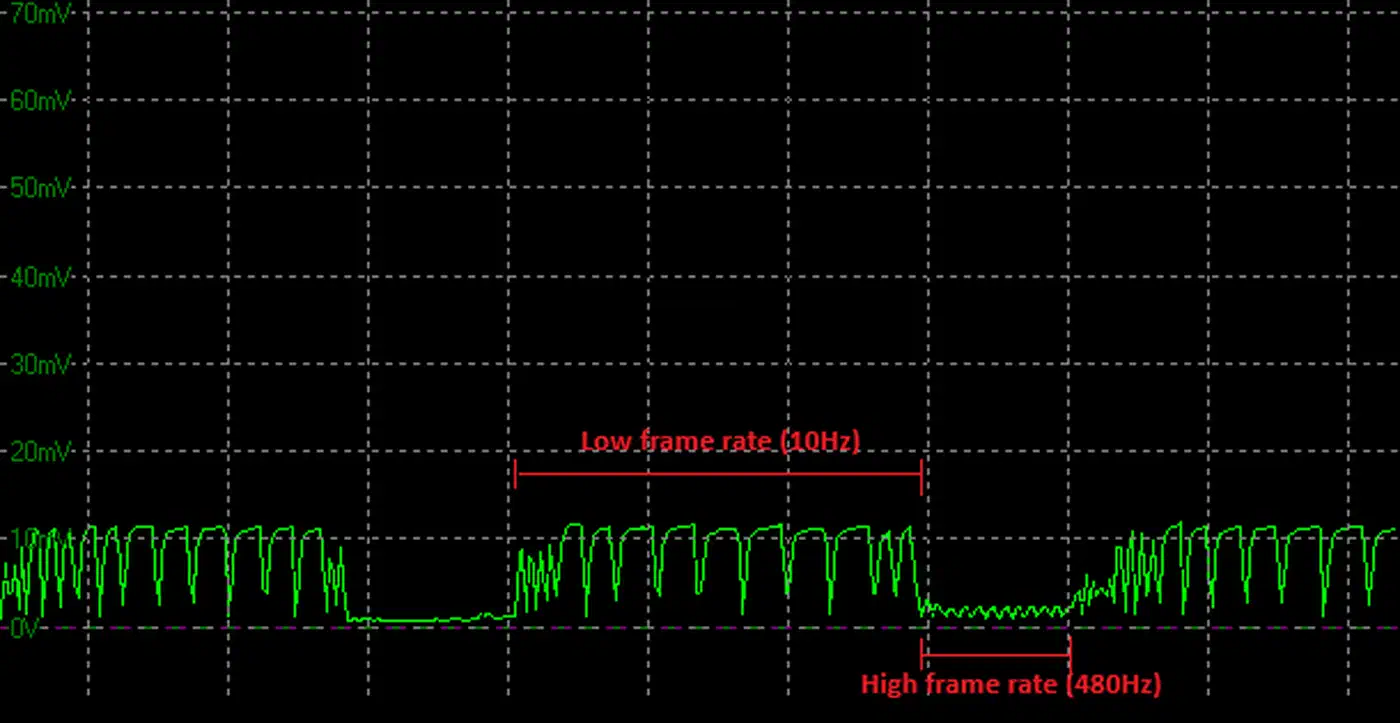
TFTCentral names six variables that decide how bad it gets: the screen, the graphics card, the game, the scene, the settings, and the frame rate you actually hit. That list explains why two owners of the same model can disagree completely. One person’s stress test may never show up in the games another person plays.
Low Framerate Compensation, or LFC, adds one more wrinkle. When the frame rate falls below the VRR range, LFC multiplies frames to keep the panel inside that range. Crossing that boundary causes a jarring one-off gamma jump. So the edges of the VRR range are their own flicker source.
The first time I experienced flickering on my Alienware AW3423DW, I honestly thought I just got a bad panel. When I eventually replaced the panel because of a few dead pixels, I hoped I wouldn’t face the problem again, but the flicker was still there.
Why dark scenes flicker and bright ones look clean
Two separate effects stack in dark content, and most coverage names only one of them. On the Asus ROG Swift PG27AQDP, a full 480Hz to 10Hz swing moved the darkest shades the most, per TFTCentral’s testing.
| RGB shade | RGB change during a 480Hz to 10Hz swing |
|---|---|
| RGB 5 (near black) | 11.0 |
| RGB 10 | 9.3 |
| RGB 20 | 5.3 |
| RGB 50 | 4.0 |
| RGB 100 | 1.8 |
| RGB 200 | 2.3 |
The eye compounds this. A five-step change between RGB 5 and RGB 10 stands out far more than the same five steps between RGB 200 and RGB 205. Human vision is more sensitive to change in low light, so the darkest content is where the panel misbehaves most and where you notice it most.
Ambient light plays a part too. A dark room makes your eye more sensitive to near-black shifts, so the same scene flickers more at night than in daylight.
That explains the loading-screen cliche. A loading screen is a mostly static dark image paired with wildly unstable frame rates, which is the exact worst case. TFTCentral’s advice is to get past the loading screen before you judge a monitor. In practice, menus, night scenes and loading screens are where to look, while bright daytime gameplay usually looks fine even on a screen that measures poorly.
WOLED and QD-OLED flicker in two different ways
The two panel types that dominate OLED gaming monitors misbehave by different mechanisms. Almost no buying guide covers this, and it changes the advice for each one.
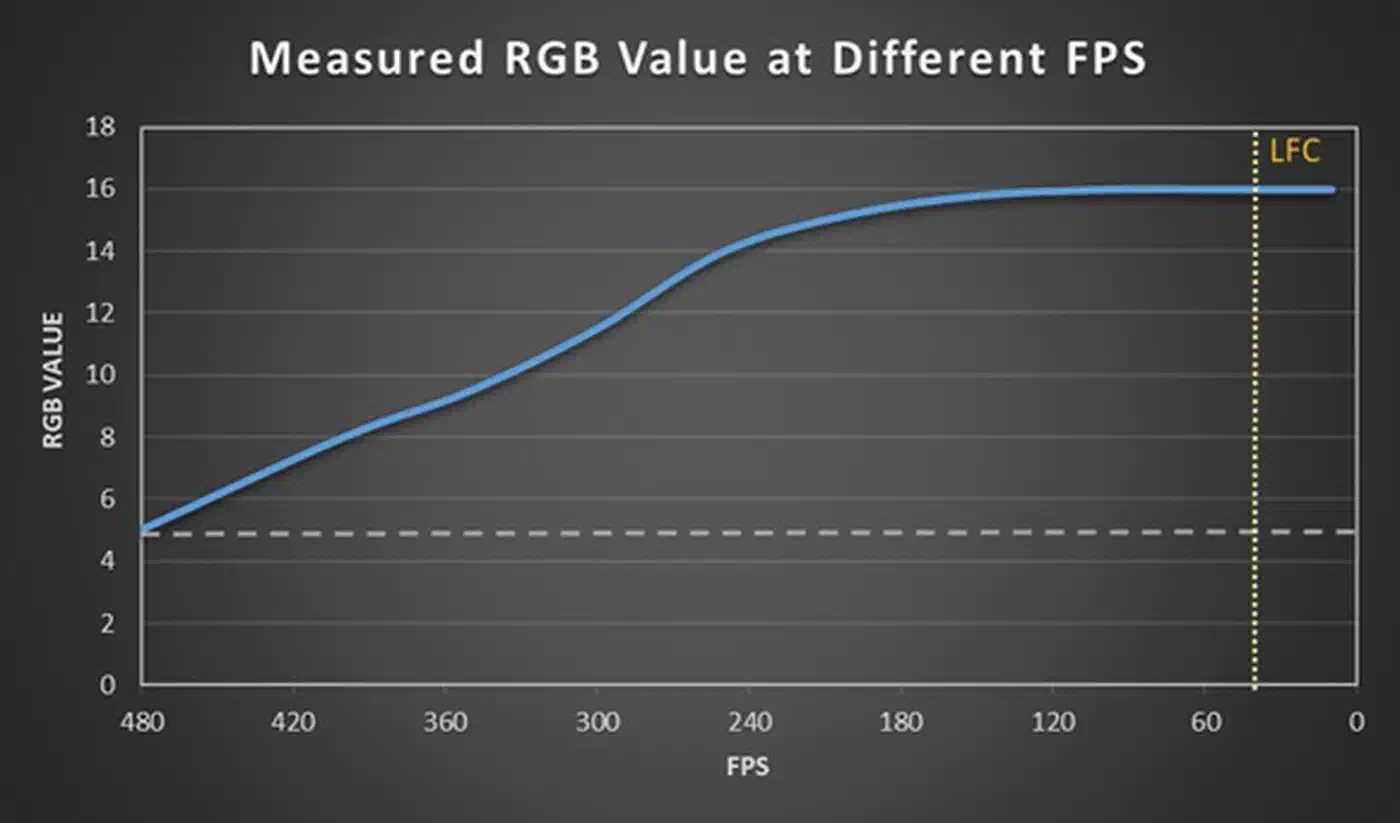
On WOLED, gamma is tied directly to the active frame rate. Lower the frame rate and the screen literally gets brighter in dark content. On the Asus PG27AQDP, RGB 5 at 480fps climbs to RGB 16 at 10fps. Because of that link, the size of the frame-rate swing sets the severity.
- A 480Hz to 10Hz swing measured 11 RGB steps.
- A 480Hz to 300Hz swing measured 6 steps.
- A 480Hz to 400Hz swing measured only 3 steps.
WOLED has a side effect here. Capping your frame rate well below the native refresh rate parks the panel at the wrong gamma. That raises blacks and washes out shadow detail even when nothing is flickering.
QD-OLED works differently. Its gamma is not tied to frame rate. A static RGB 5 image measures RGB 5 at a steady 240fps and stays RGB 5 at a steady 10fps. So capped frame rates do not raise blacks the way they do on WOLED.
Instead, QD-OLED throws short spikes and flashes at seemingly random points across the refresh range, brighter or darker. The amplitude stays the same whether the swing is small or large. What changes is the frequency of the spikes, which rises as frame rates fall.
That splits into two rules. WOLED owners chase consistency at any frame rate. QD-OLED owners chase consistency and height, staying near the panel’s maximum refresh rate. Still, TFTCentral is careful here: the sample size is small, they call this a possible trend rather than a law, and two models from one brand can behave completely differently.
The test conditions were fixed. TFTCentral ran SDR content with gamma set to 2.2, converted oscilloscope luminance readings into RGB values, and validated them against a spectroradiometer.
Do OLED anti-flicker modes help?
The anti-flicker mode in the OSD menu is a real improvement with a real cost. It shrinks the panel’s active VRR range so the frame rate cannot fall as far, which caps how far the gamma can drift.
On the Asus PG27AQDP at RGB 5, the mode clearly cut the swing:
| Anti-flicker mode | VRR range | RGB swing at RGB 5 |
|---|---|---|
| Off | 480 to 40Hz | 11.0 |
| Middle | 480 to 165Hz | 8.5 |
| High | 480 to 210Hz | 7.0 |
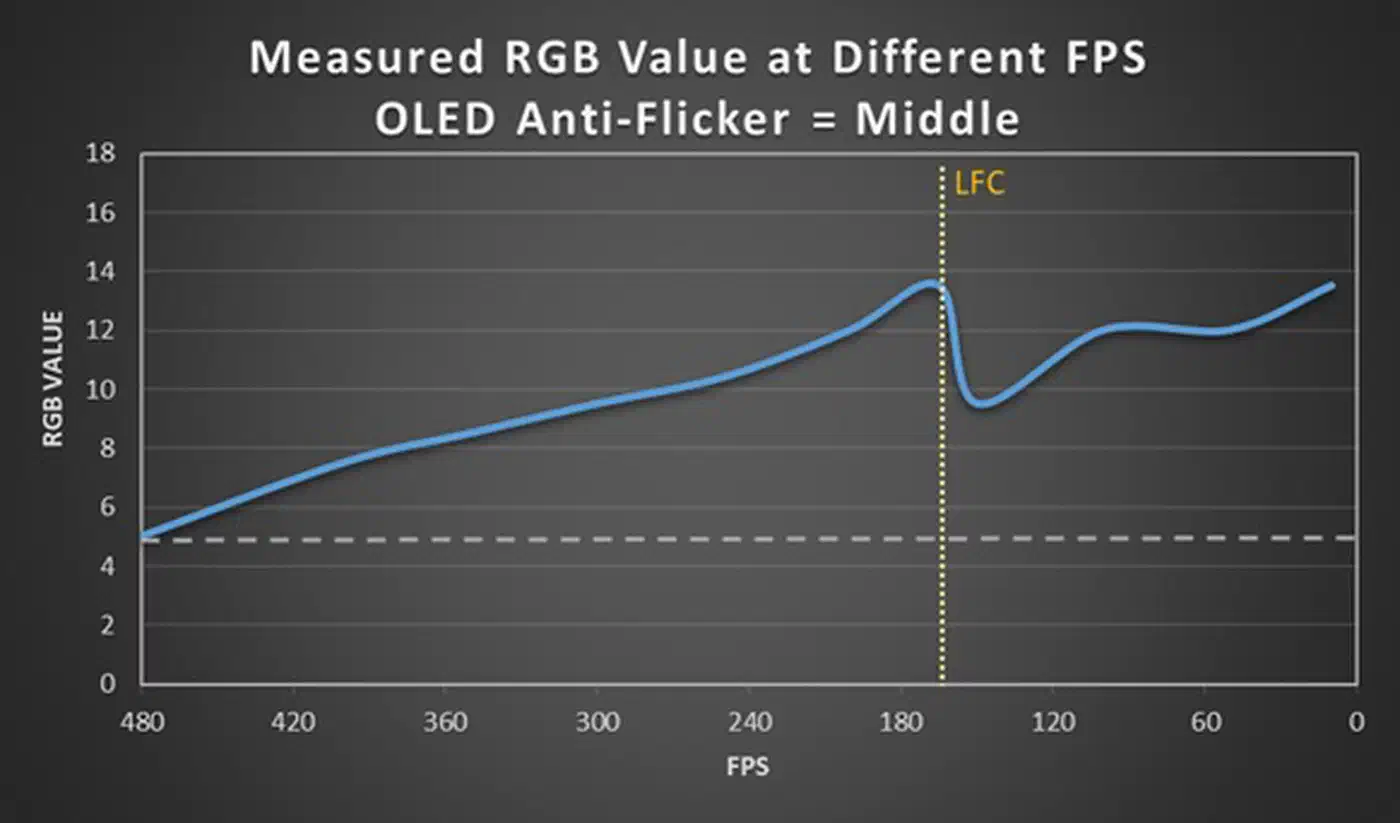
The modes also seem to apply some gamma compensation of their own. At 200fps the panel reached RGB 12 in middle mode against RGB 15 with the mode off.
The cost sits at the bottom of the narrowed range. Below it, LFC takes over, and the LFC boundary produces a jarring RGB jump of its own. Trading a wide gentle drift for a narrow range with a hard edge can feel worse if your frame rate keeps crossing that edge. Some panels add a “VRR dead zone” where neither VRR nor LFC runs. There is no flicker inside the zone, but you get the same jarring gamma change every time the frame rate crosses in or out.
Anti-flicker modes reduce the amplitude, they do not remove the flicker. Picking one means knowing roughly what frame rate you hold in the games you play.
Vendors keep iterating on this. Asus shipped OLED Anti-Flicker 2.0 on the PG27UCDM, and Samsung added a “VRR Control” option to the Samsung Odyssey G7 by firmware. Display Ninja notes that Samsung’s version mostly swaps flicker for micro-stutter or added input lag.
How to reduce VRR flicker on your own monitor
Every option below is a trade, running from the cleanest escape to the most fiddly.
Turn VRR off. It removes the flicker completely and hands back screen tearing, which V-Sync then fixes at the price of input lag. TFTCentral calls this the cleanest escape for anyone who already holds high, steady frame rates.
Hold a steadier frame rate. Lower a couple of game settings, or upgrade the parts that cause frametime spikes, so the refresh rate stops swinging in the first place.
Cap the frame rate slightly below the panel’s maximum refresh rate. Use the NVIDIA Control Panel limiter or an in-game cap. This stops frames from soaring and then collapsing, which is the swing that causes the flicker. On WOLED, watch the cost: a cap set far below native raises blacks and lifts shadow detail even as the flicker calms down.
Learn your panel’s VRR range and its LFC boundary, then pick a frame-rate target that does not sit on top of it. AMD publishes a reference table of monitor VRR ranges, and TFTCentral lists the range in every review. On AMD cards there is a classic oscillation case: a 48 to 144Hz panel sitting at 47 or 48fps flips LFC on and off repeatedly, which is exactly when brightness pumps. Display Ninja’s fix is either to raise the frame rate above that boundary or to edit the VRR range with CRU.
None of this is a cure, and the XDA writeup frames it best. These are workarounds, not fixes. Capping a 240Hz or 360Hz monitor to keep it from flickering is a real compromise on the very thing the panel was bought for.